Basics: How do I operate the smartphone with the touchscreen?

The screen of your smartphone is a touchscreen, which means it responds when you touch it with your fingers or a special pen called a stylus. You therefore "work" directly on the screen of your smartphone.


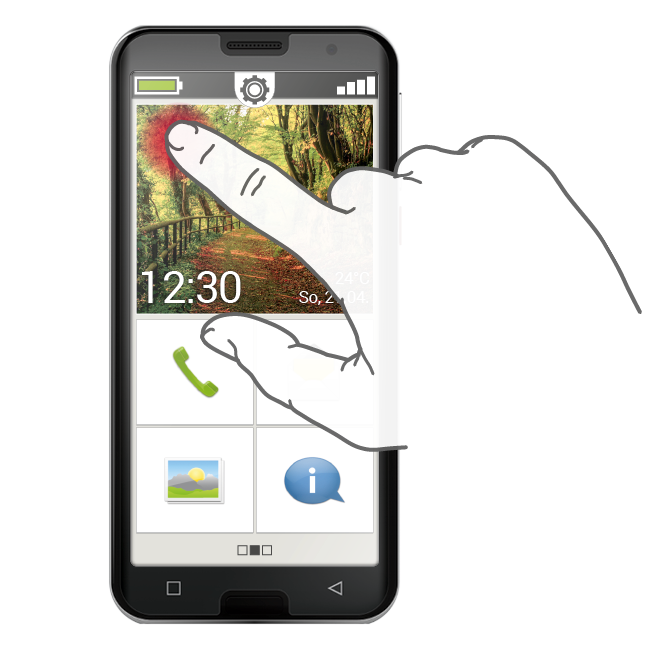
Tapping

There is one important difference between the way conventional buttons work and the way a touchscreen works.

Conventional buttons are like switches. They respond as soon as they're pressed hard enough.
In contrast, a touchscreen does not respond to pressure, but detects the capacitive voltage of your skin when you touch it with your finger. When you move your finger away from the screen again, this flow of voltage is interrupted – and this is what the screen responds to.

So it's not about how hard you press! Put your finger on the screen without pressing, so that a clear area of contact is created between your finger and the glass. When you take your finger away again, the screen will respond and perform your desired action.

Tip: It is best to use your index finger to operate the touchscreen,
because this finger has better developed fine motor skills than your other fingers.


Tapping and holding
A picture element will often respond differently when it's pressed and held for several seconds instead of just being tapped briefly. This action of pressing for longer is known as tapping and holding. Sometimes, a double-tap, i.e. two taps on the same spot in quick succession, can also bring about a reaction that's different to that of a simple tap.
Swiping

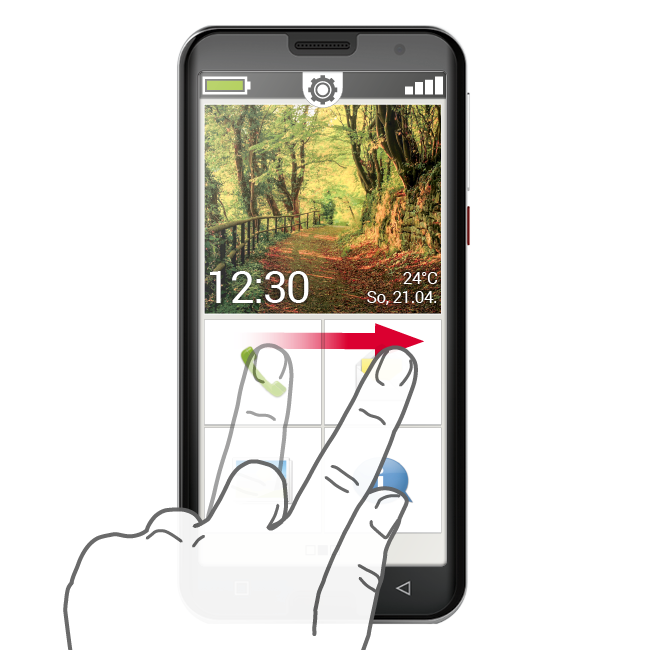
Do you want to expose hidden text on the screen to read more? Would you like to flick through screens like you do with a photo album? If you want to do either of these, you have to swipe.
To do it, touch the screen of your smartphone with a finger and drag your finger in the direction you want the screen's content to move. The content will follow your finger. Be aware that your finger must remain in constant contact with the screen as you drag it.

So place your index finger on the screen, applying even light pressure. You don't need to press hard, but if you're hesitant as you move your finger, your swiping could be interpreted as tapping. It is also not advisable to give
the content a "shove" with one fast swipe so that it continues to move by itself. You'll lose control of the content if you do that! It is better to continue moving the content yourself with several controlled swipes.

Tip: The directions in which you can swipe content vary depending on the content. Just give it a go!

Zooming

Maybe you'd like to look at a photo more closely or are having problems making out exactly what a piece of text says. Your smartphone offers you the ability to enlarge or shrink displayed content.

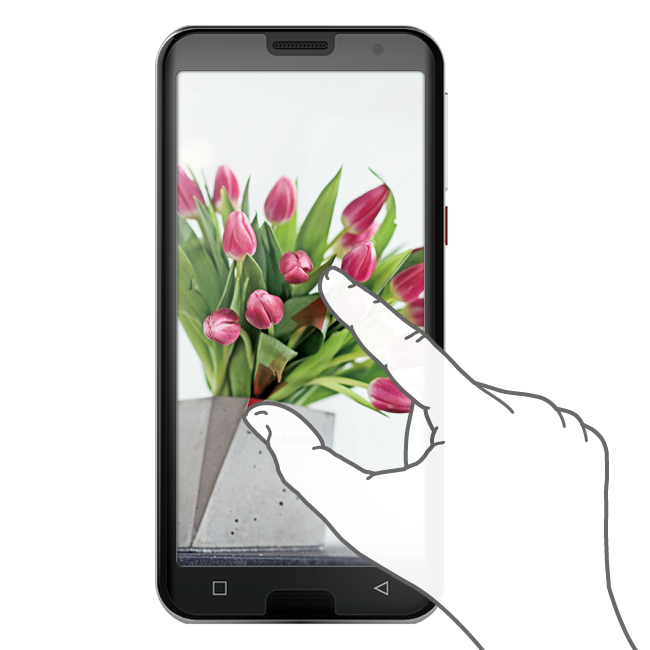
Touch the screen with your thumb and index finger at the same time.

  • To enlarge the area you're looking at, push your finger and thumb further away from each other.
  • To shrink the area you're looking at, push your finger and thumb closer to each other.

Your finger and thumb must remain in contact with the screen whilst you're moving them.

Tip: If you don't yet feel confident about using finger movements on the screen, use the Touch Trainer, an app provided by emporia, for some step-by-step practice. You'll be a master at tapping, swiping and zooming in no time!

Tippen

Wischen

Zoomen