The Home Screen
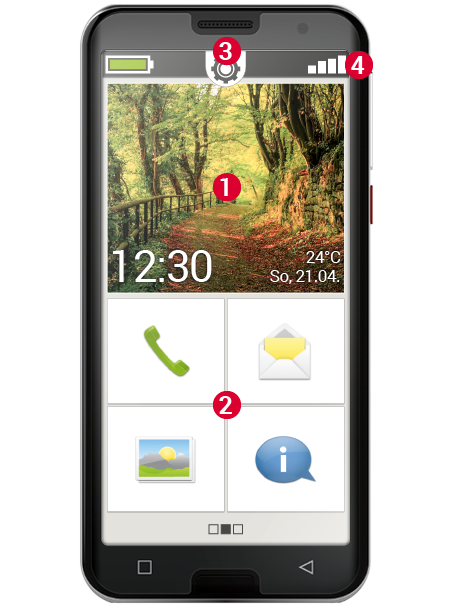
The Home Screen is the main interface of your smartphone. It consists of the following elements:
(1) Wallpaper: The wallpaper is a decorative image and can be customised. The time, date and weather are displayed on the screen. If you wish to change these, tap and hold the relevant element.
(2) Below the wallpaper, you will find four fields preset with the following functions:
- Phone and Contacts
- Messages
- Photo album and camera
- Info centre
Tip: Would you like to link other functions to the home screen? No problem! Tap and hold one of the fields for approx. 3 seconds and select the desired function from a list.
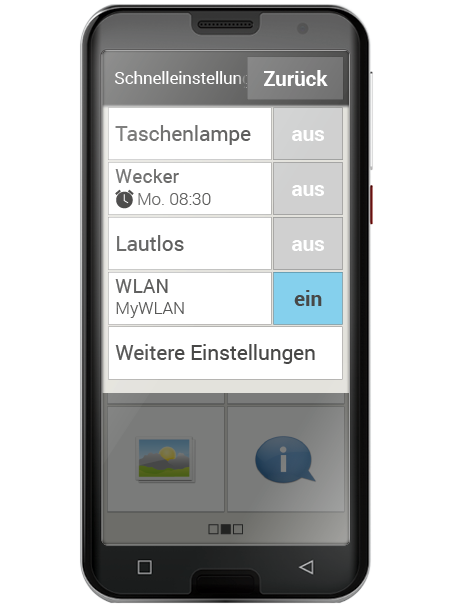
(3) Quick Settings: In the centre at the top, you will see a cog icon. If you tap it or drag it downwards, you will open the Quick Settings.
Here you have an overview of the most important settings for the emporia app’s functions, as well as direct links to device settings.
(4) Toolbar: The following icons can appear at the top of the touchscreen when the corresponding app is active on the phone:
- Battery icon: Shows the charge status
- Alarm clock: the alarm clock is set
- Silent: the Silent audio profile is active
- Signal strength: Shows the signal reception
- Airplane mode: Airplane mode is active
If you tap the battery icon, the charge level is shown as a percentage.
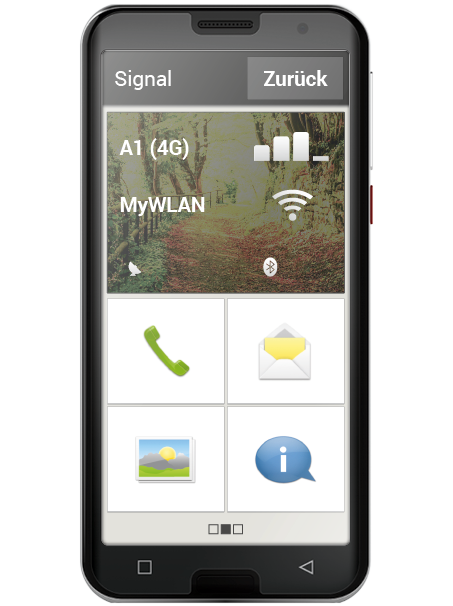
If you tap the signal strength icon, the extended display panel opens.
Here you will find information on the current status of network reception, the data connection, the Wi-Fi connection and much more.
Personal page
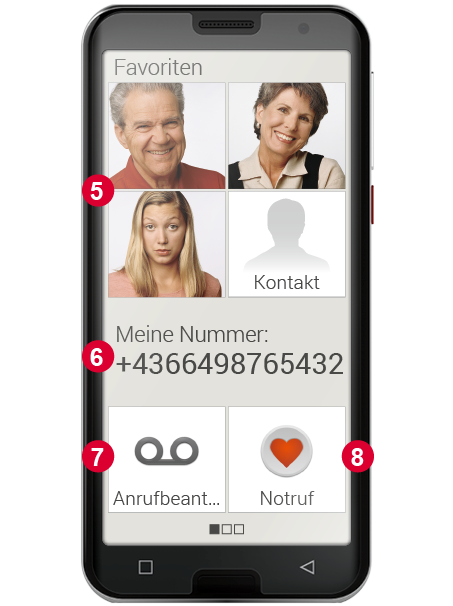
People like to keep their personal items organised in one central place – and it’s no different with a smartphone. You can access the personal page by swiping from left to right across the home screen. On this page, you can save your favourite contacts, view your own phone number, listen to your voicemail and use the emergency call function.
You can find out how to customise the speed-dial keys in the user guide.
(5) Favourites: Here you can save four contacts you wish to call frequently.
(6) My phone number: Your own phone number is displayed here automatically. If you tap on it, you can send, copy or edit the number.
(7) Voicemail: Here you can access your voicemail.
(8) Emergency call: The emergency call function is disabled by default.
Apps page
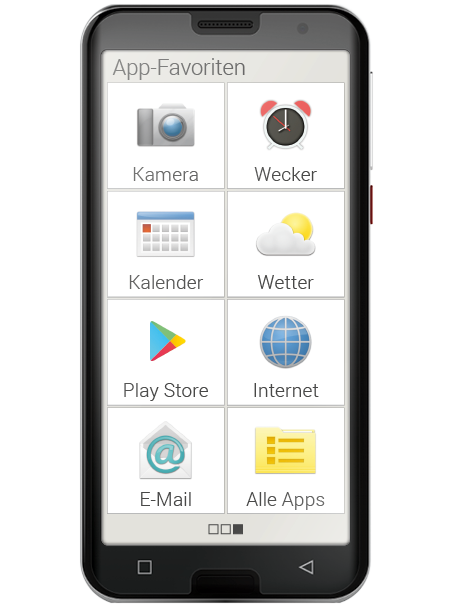
Apps are what turn a smartphone into a little all-rounder. On the Apps page, you can access all the apps installed on your smartphone. You can reach the Apps page by swiping from right to left across the home screen.
You can place the apps you use most frequently directly on this page.
Would you like to display a different app on this page? Tap and hold one of the fields for approx. 3 seconds and select the desired function from a list.
The ‘All Apps’ field at the bottom right opens a list showing all the apps available on the smartphone.