emporia calendar

You can now manage your events on your smartphone and access them any time. Your digital calendar will remind you of things like events and birthdays through notifications.

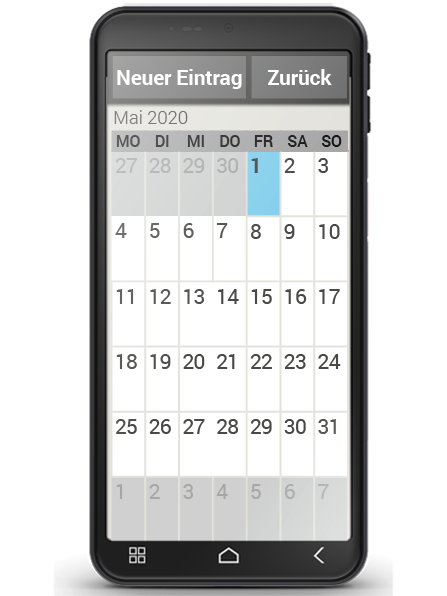
Open the Calendar app on the app screen or the "All apps" list. The current month will be shown in the overview and Today's date will be in blue.


How do I enter a new event?
  • Tap on "New entry" and specify whether you want to enter an "Event" or a "Birthday".
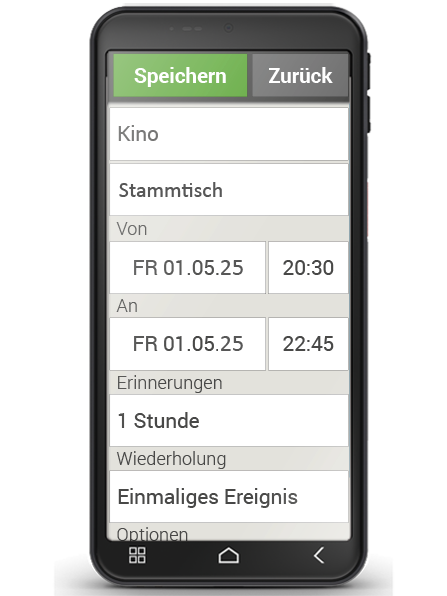
  • Enter a "Name" for the new event.
    This name is what the event will be shown as on the calendar.
  • Now enter a time frame for the event.
    Today's date and the time 30 minutes from now will be entered by default.
  • Tap on the date and time to change these details.
  • In "Reminders", you can specify how long before the event you would like to receive a notification.
  • In "Repetition", you can set the event you've just entered to recur daily, weekly, monthly or yearly.

Don't forget to save every event you enter and any changes you make!
 

How can I find an event I've entered?

In the month calendar overview, the days you've entered events on will be highlighted.

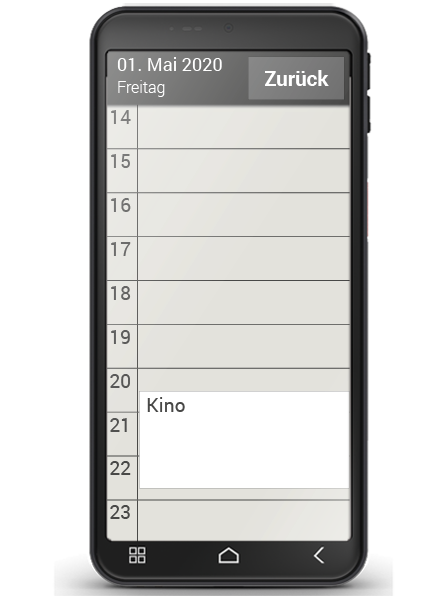
  • If you tap on a day button, a list of all the hours of this day will be displayed.
  • Events that have already been entered will be highlighted by coloured areas and labelled with the name of the event.

Tip: Be aware that the list is long! Some events may not be visible at first glance. Swipe up and down over the list, so that you can see events
entered at other times of the day.

Can I search for an event?
  • To do this, tap on "New entry" in the month overview and then on "Next event" in the list that appears.
  • All your events from today's date onwards will now be listed in chronological order.
  • You can of course then tap on one of these events to open all its details and also edit the event.

Neuen Termin eintragen

Detailangaben zum Termin

Terminanzeige im emporia Kalender

Wie finde ich einen eingetragenen Termin?

In der monatlichen Kalenderübersicht sind jene Tage, an denen Sie Termine eingetragen haben, mit Markierungen versehen.

  • Tippen Sie auf ein Tagesfeld, so wird eine Stundenliste dieses Tages angezeigt.
  • Bereits eingetragene Termine sind flächig markiert und mit dem Terminnamen beschriftet.

Tipp: Achtung, die Liste ist lang! Es kann sein, dass ein eingetragener Termin nicht auf den ersten Blick sichtbar ist. Wischen Sie in der Liste nach oben oder unten damit Termine, die an anderen Tageszeiten eingetragen sind, angezeigt werden.

Kann ich nach einem Termin suchen?

  • Tippen Sie dazu in der Monatsübersicht auf "Neuer Eintrag" und in der Liste auf "Nächster Termin".
  • Nun werden alle Termine ab dem heutigen Tag chronologisch aufgereiht.
  • Natürlich können Sie einen dieser Termine antippen, um alle zugehörigen Details zu öffnen und den Termin auch zu bearbeiten.