Set up a Google account
Set up an existing Google account
Have you already used an Android smartphone? If so, you already have a Google account set up on your old device.
Use this account to easily set up your new emporia smartphone.
You will need:
- Internet connection (via Wi-Fi or mobile data)
- Details of your existing Google account: email address ending in @gmail.com and the corresponding password
Tip: Have you forgotten or lost your password? Open your Google account on your old device, tap on ‘Forgot password’ and set up a new password.
How to proceed:
- Step 1: Open settings – Accounts – Add account (this step is not necessary during the installation process)
- Step 2: Enter your Gmail address
- Step 3: Enter your corresponding password
- Step 4: Privacy and terms, settings and permissions for your Google account
(The following step-by-step instructions use the SMART.5 as an example)
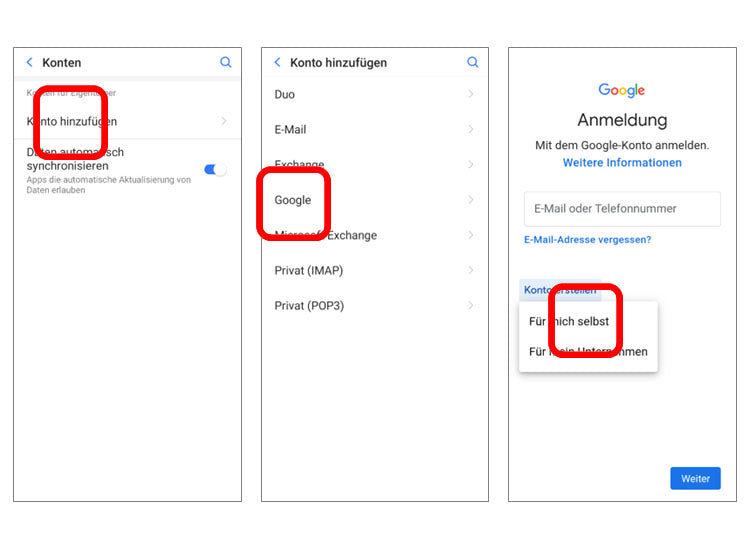
Step 1:
Open the ‘all apps’ and ‘settings’ list.
Search for ‘Accounts’ in the list and open it.
Tap on ‘Add account’.
Tap on ‘Google’.
Tip: This step can be skipped during the initial installation.
Steps 2 to 4:
Enter your existing Gmail address.
Enter the corresponding password.
Confirm the terms of use.
Once the setup is complete, all data backed up with your Google account will be transferred to your new smartphone in the background. Depending on the amount of data, this may take some time.
Set up a new Google account
Don't have your own Google account yet? Or are you having trouble setting up your existing account? Then set up a new Google account in just a few steps.
What you need:
- Internet connection (via Wi-Fi or mobile data)
How to proceed:
- Step 1: Open settings – Accounts – Add account – Google – Create account (For myself)
- Step 2: Personal details
- Step 3: Choose a Gmail address (you can choose any name you like, e.g. vor@gmail.com)
- Step 4: Create your own password
- Step 5: Privacy and terms, settings and permissions for your Google account
(Step-by-step instructions below using the SMART.5 as an example)
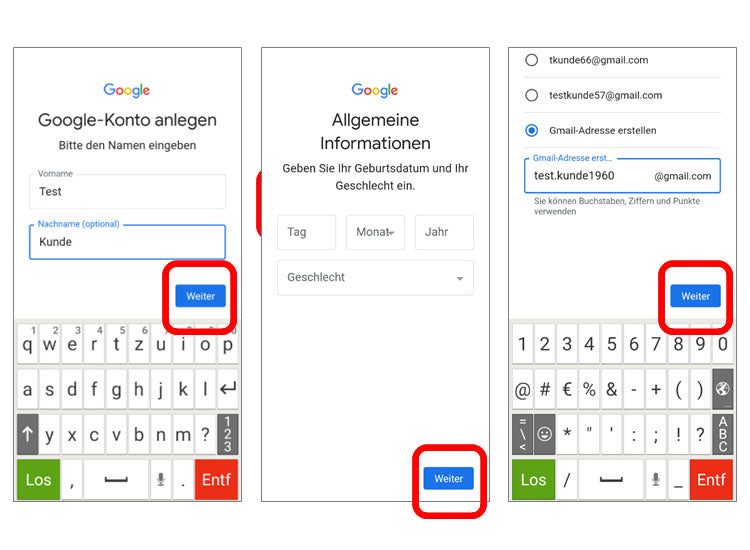
- Enter your date of birth and gender.
- Select ‘Create Gmail address.’
- Enter a name of your choice.
- If this address is already taken, change the name.
- Open the ‘all apps’ and ‘settings’ list.
- Search for ‘Accounts’ in the list and open it.
- Tap on ‘Add account’.
- Tap on ‘Google’.
- Tap on ‘Create account’ and then on ‘For myself’.
- Enter the customer's first name and surname.
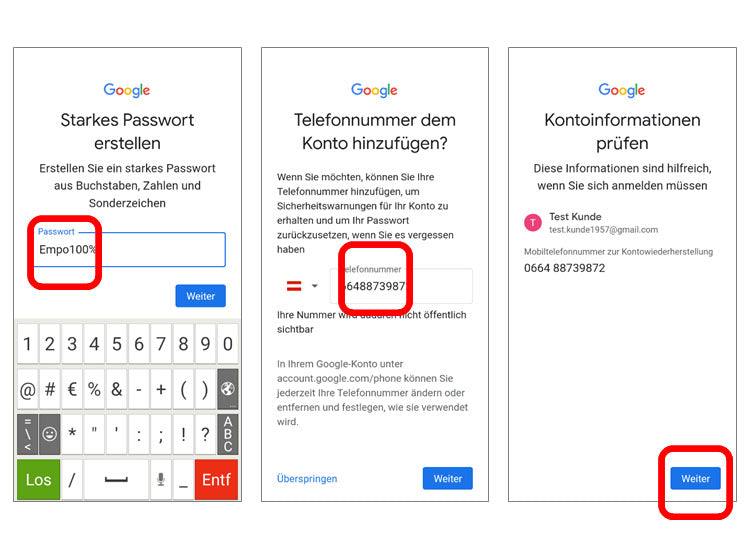
- Enter a password consisting of upper and lower case letters, numbers and special characters.
- Enter your telephone number as a security check or skip this step.
- If the password is accepted, make a note of the Google account and password.
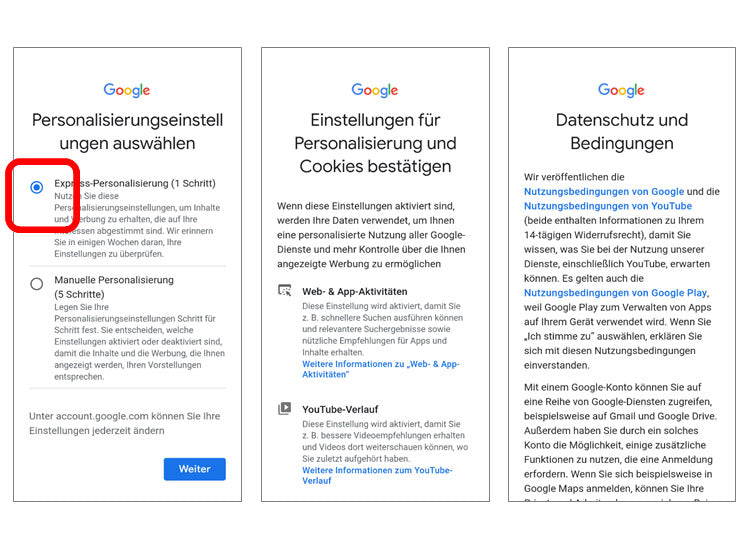
- Select ‘Express personalisation’.
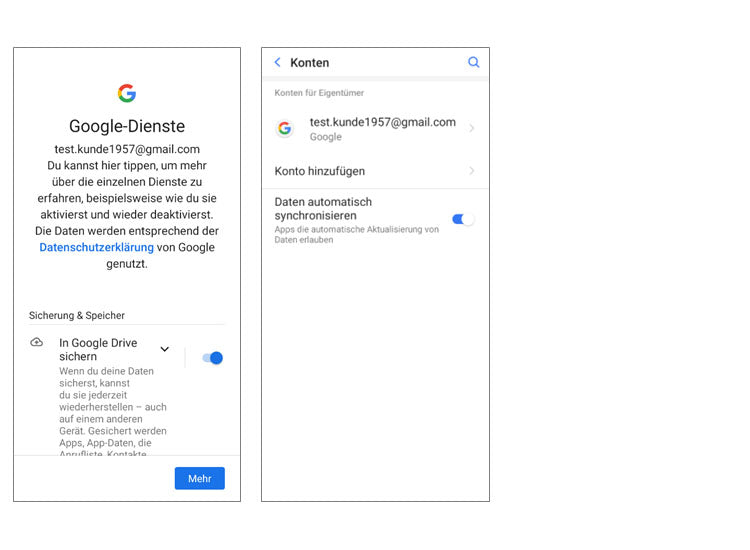
- Swipe through the next few pages, confirm the settings, agree to the privacy policy and configure the security settings.
- Once the account has been set up, it will be listed and the data will be synchronised automatically.