Google Playstore
Searching for apps in the Play Store
1. Play Store app
You can find the Play Store app in the ‘all apps’ menu item on your home screen.
Tap on it and scroll down to the ‘Play Store’ entry.
2. The search bar
Tap on the ‘Play Store’ entry.
Immediately after launching the app, the search bar appears at the top of the home page.
3. Enter search term
At this point, we assume that you know which app you are looking for. Activate the search field, the on-screen keyboard will open and you can enter any search term. As you type, the app will show you specific suggestions based on your input.
Download apps
Once you have found the app of your dreams, you can install it. If your chosen app is compatible with your device, you can get started right away.
Install
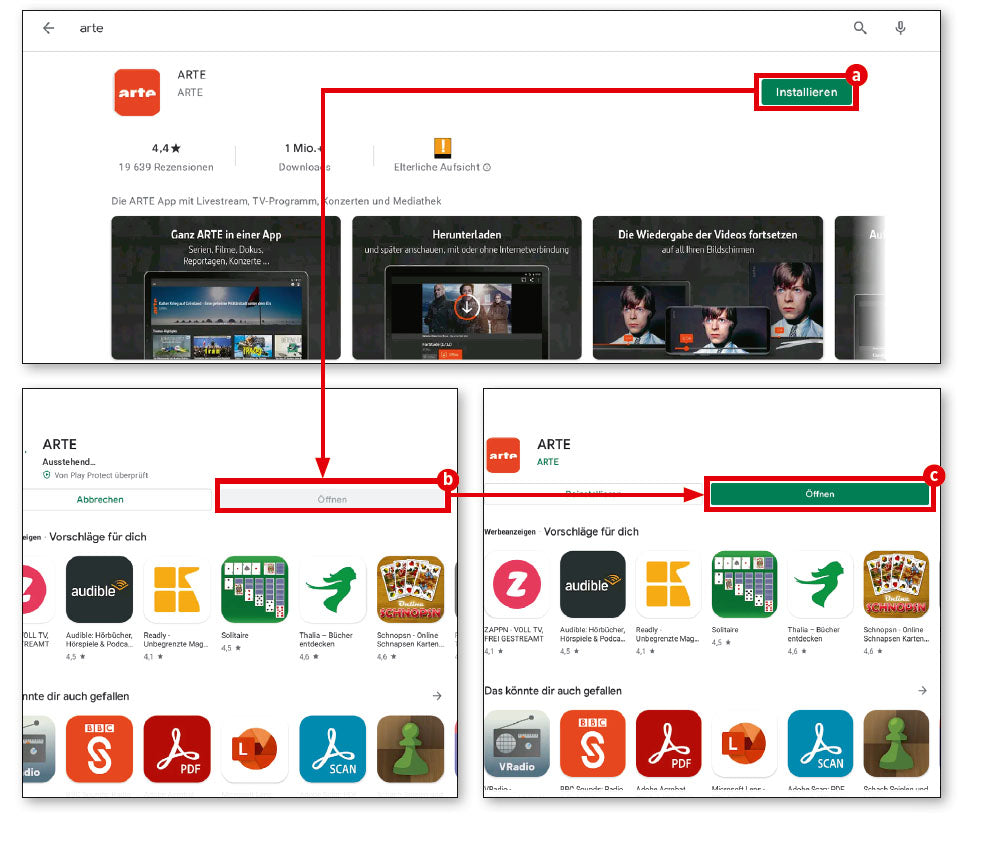
If the desired app is free and can be installed on your device, a green button labelled ‘Install’ (a) will appear. If it is a paid app, the price will appear instead.
Installation process
During installation, the ‘Open’ button (b) is inactive. Once installation is complete, it will turn green and can be tapped to open the app for the first time (c). You will then find this app like any other app in your tablet's app menu, which you can access via ‘all apps’.
Films, games and books
In addition to apps, the Play Store also offers games, films and books that you can download or stream.
The path to more fun
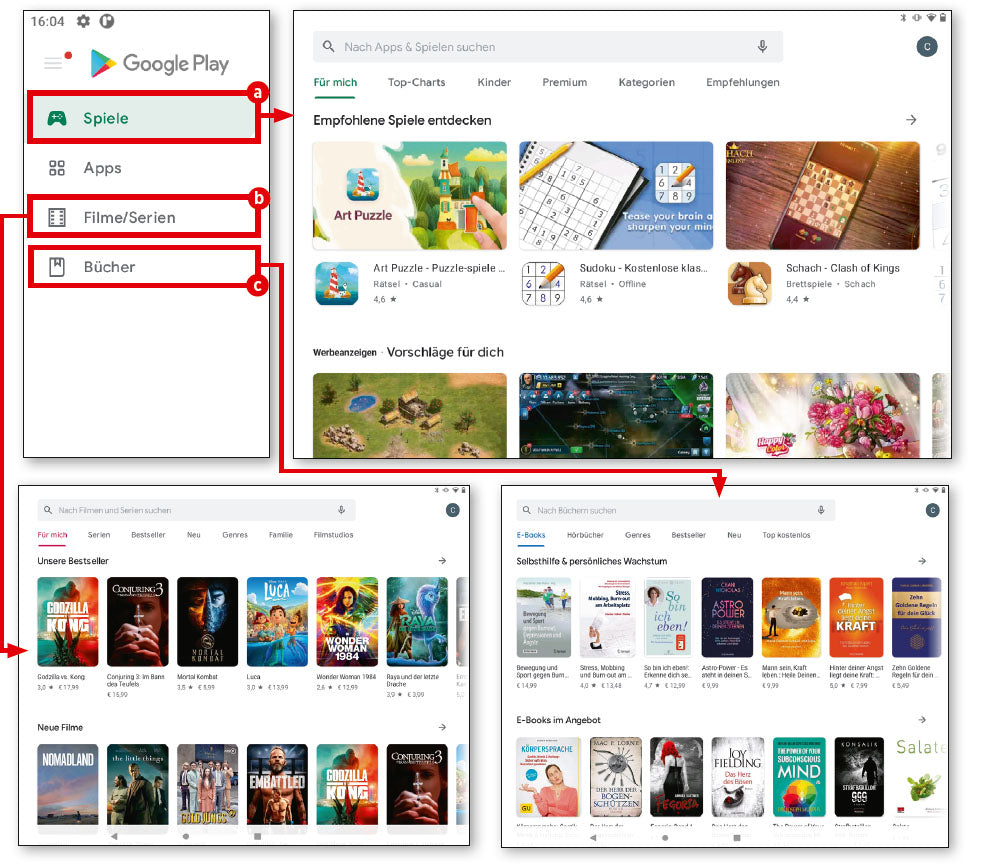
Naturally, the Play Store primarily offers apps. However, the rest is not that far away, as the corresponding buttons are already located at the top left of the sidebar.
Games and more
This takes you to games, books and films in no time at all. The search and download process is then no different from that described above for apps.
Updates
Apps are constantly being developed and are usually available to users free of charge. You can find out the status of your apps by going to the ‘My apps and games’ section.
My apps and games
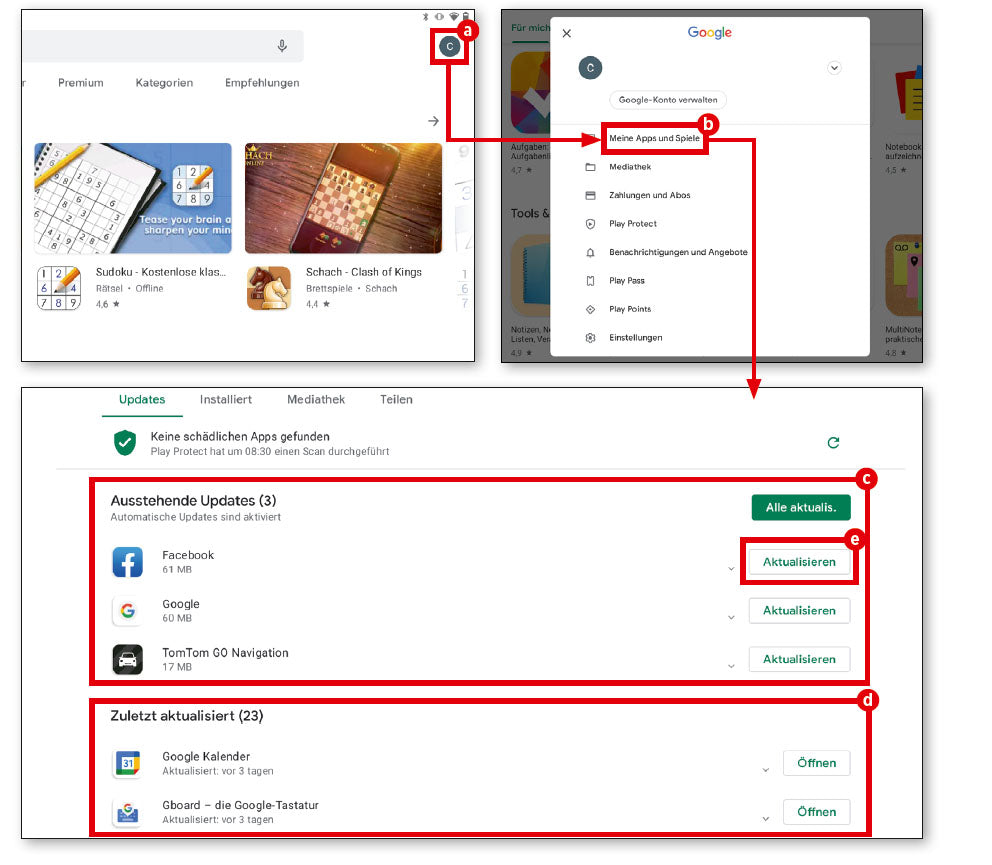
At the top right, you will find a round button with your initials or your profile picture. Tap on it. In the menu that appears, select ‘My apps and games’.
Open apps and games
All apps and games are now displayed. There are two types of updates: those that require new access rights. These updates must be started manually. Updates that do not require any special user interaction are usually performed automatically in the background and are displayed in the ‘Recently updated’ section.
To start updates manually, simply tap the ‘Update’ button next to the app in question.