Google Contacts

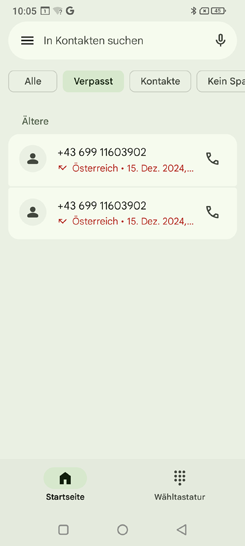
This app displays all contacts available on the phone.

Unlike a push-button phone, a contact includes more than just a phone number. You can also save a photo of the person, email addresses and their birthday.

Search for a contact

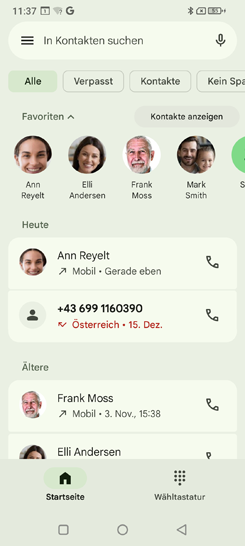
All saved contacts are displayed in a list and sorted alphabetically by name.

Tap a name in the list to call the contact.

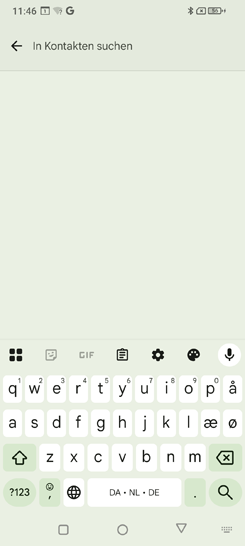
If searching through the list is too tedious because you have saved a large number of contacts, you can also enter the first few letters of the contact you are looking for in the search field. The matching selection will be listed.
Open contact

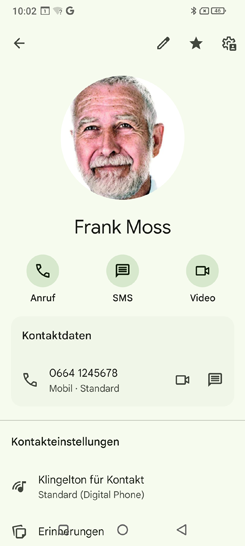
If you want to open a contact, tap the contact icon to the left of the name or number.

The contact is displayed with detailed information such as the contact photo, contact name, mobile number and, if available, email address and birthday.

  • When you tap a button, the corresponding action is performed, e.g. tapping the phone number starts a call.
  • Use the icons to perform the associated actions: call, text message and video.
  • Tap the star icon to mark the contact as a favourite.
  • Tap the options menu icon with the three dots to find more actions related to the contact record.


Edit contact

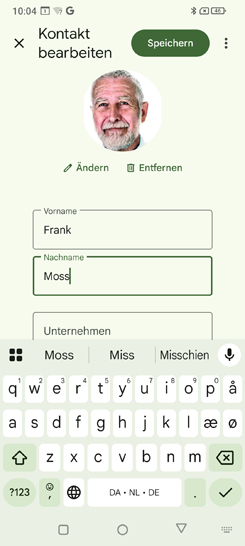
If you want to change existing contact data, tap the pencil icon. Then tap on the phone number, for example, change it and save your entry.

Tip: Before you close the contact again, press the ‘Save’ field so that all changes are applied.

Kontaktliste

Kontakt öffnen

Kontakt bearbeiten

Kontakt öffnen

Wenn Sie einen Kontakt öffnen wollen, tippen Sie auf das Kontaktsymbol links neben dem Namen oder der Nummer.

Der Kontakt mit den Detaildaten Kontaktfoto, Name des Kontakts, Mobilnummer und eventuell E-Mail-Adresse und Geburtstag wird angezeigt.

  • Wenn Sie eine Schaltfläche berühren, wird die dazugehörige Aktion ausgeführt, z. B. Telefonnummer antippen startet einen Anruf.
  • Verwenden Sie die Symbole, um die damit verbundenen Aktionen auszuführen: Anruf, SMS und Video.
  • Tippen Sie auf das Stern-Symbol, um den Kontakt als Favorit zu definieren.
  • Tippen Sie auf das Optionsmenü-Symbol mit den drei Punkten, um weitere Aktionen zu finden, die sich auf den Kontaktdatensatz beziehen.

Kontakt bearbeiten

Wenn Sie bestehende Daten eines Kontaktes ändern wollen, tippen Sie auf das Stiftsymbol. Tippen Sie dann z. B. auf die Telefonnummer, ändern und speichern Sie die Eingabe.

Tipp: Bevor Sie den Kontakt wieder schließen, drücken Sie das Feld "Speichern", damit alle Änderungen übernommen werden.