Basics: How do I operate the smartphone with the buttons?
Although a smartphone is operated using a touch-sensitive screen, the touchscreen, it does have a few physical buttons as well!
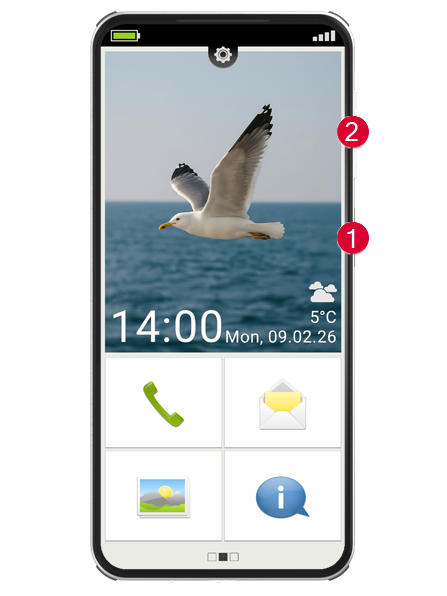
On/Off buttons (1)
Every device of course needs an on/off button and, in this case, it is the short button on the side of the phone. This button has two functions:
- Press and hold: If you press and hold the button down for longer than 2 seconds, the device will turn on or off completely.
- Brief press: If you press the button briefly when the phone is on, the touchscreen will be deactivated and therefore go black. This doesn't mean the phone has been switched off, however; it is just in sleep mode. To wake the device, press the on/off button again briefly. The touchscreen is now sensitive to input again and will respond when you touch it.
Volume button (2)
The long button on the side of the phone enables you to control the volume. Press the top half to make it sound louder and the bottom half to make it quieter.
Tip: If the phone is ringing and you want to turn off the ringtone quickly, simply press the volume button. The ringing will stop, but the call will not be interrupted. You can now take all the time you need to decide whether to accept or reject the call. You can also mute the alarm in the same way.
Navigation buttons
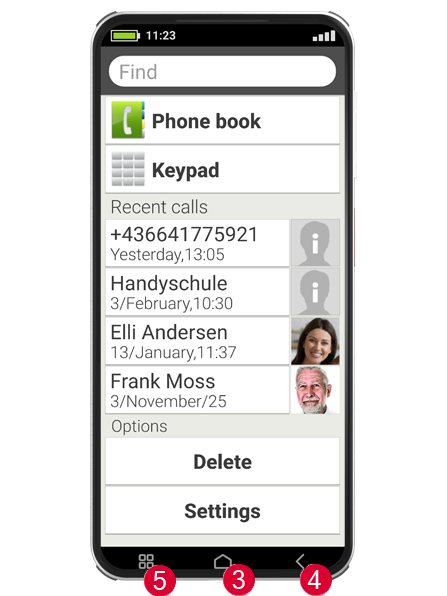
There is another physical button at the bottom of the screen, which is called Home button (3). This button will take you back to the home screen any time if you press it briefly. Pressing and holding it for a few seconds will open Google Assistant, however.
To the right and left of the home button, there are two other buttons, which are recognised by the symbols printed on them.
Back button (4): Tapping on the will take you back one step and undo
your last action.
Menu button (5): Tapping on the will display all the functions currently active on the phone in overlapping windows. You can scroll through the functions and close them one by one – or all at once!
Emergency button
The emergency button is positioned on the back of the phone. It can be very
helpful in an emergency, but it needs to be enabled and set up first. The
button has been preset to be off, as this function will only work efficiently
if it is adapted to your needs. You can find out how to set up the emergency button in the manual and at https://www.emporiamobile.com/pages/emporia-emergency.
Sleep mode
If you don't use your phone for a certain period of time, the screen will automatically switch to sleep mode and go black. This is needed in order to prevent electricity from being used unnecessarily and to avoid any unintentional input on the screen. You can reactivate the screen by pressing the on/off button briefly.
The phone is normally set to go black after 30 seconds without input on the touchscreen. You can change the length of this period in "Settings - Display - Sleep".