emporia e-mail
Setting up an existing email account on your smartphone
Do you already use email on your PC and now want to read and write emails on your smartphone too?
To set up your email account on your smartphone, you first need the account details:
• What is the email address?
• What is the corresponding password?
Displaying newly received emails
When you receive an email, the LED indicator on your smartphone flashes and a notification is displayed in the info centre.
Open the Info centre and tap on the notification to display the new email. You can also open the Email app in the All apps list to go directly to your Inbox.
Writing an email
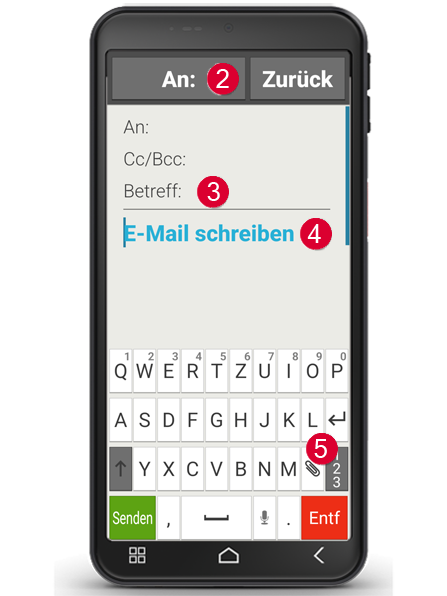
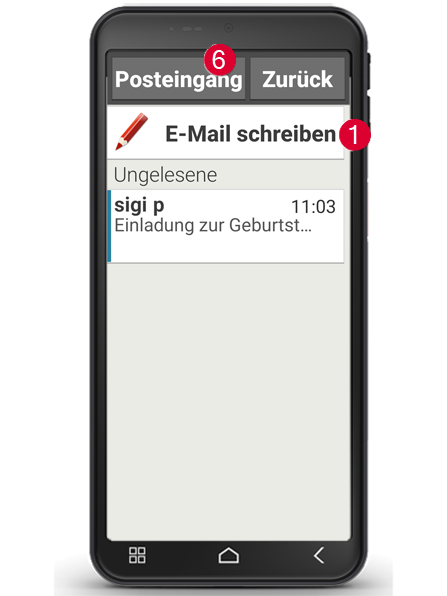
When you open an email app, you will usually be taken directly to your inbox. Many apps have a pencil icon here that you can tap to open the input window for writing emails. With the pre-installed emporia app, you need to tap on the Write email field (1). Just like when writing an email on a computer, enter the recipient in the To line (2), enter a subject (3) and write your message in the text field (4). You can use the paperclip icon in the keyboard field to attach data such as photos (5), then send the email.
Tip: In the Cc line, enter recipients who should receive a copy of the email. If you want to send an email to several recipients at the same time and do not want them to see each other's email addresses, enter all addresses in the Bcc line.
Displaying old emails
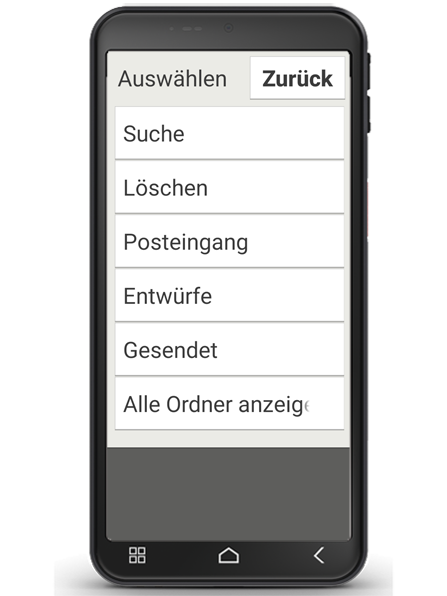
Each email account is divided into different folders, e.g. Inbox, Sent emails, Drafts, etc. In the emporia email app, you can switch to other folders by tapping on the Inbox (6) field.
Deleting an email account
To do this, open the Settings, display all Accounts linked to this smartphone. Select the email account you want to delete and tap Remove account.