emporia keyboard

Wanting to write an SMS or an email? Like computers, smartphones require a keyboard for you to perform such tasks. Whenever text input is necessary and you tap on the text input field, the software keyboard will automatically appear on the bottom half of the screen. The keyboard has a similar layout to that of a computer keyboard by default. Keyboards of this kind are known as QWERTY keyboards because of the first six letters in their first row.

Standard symbols

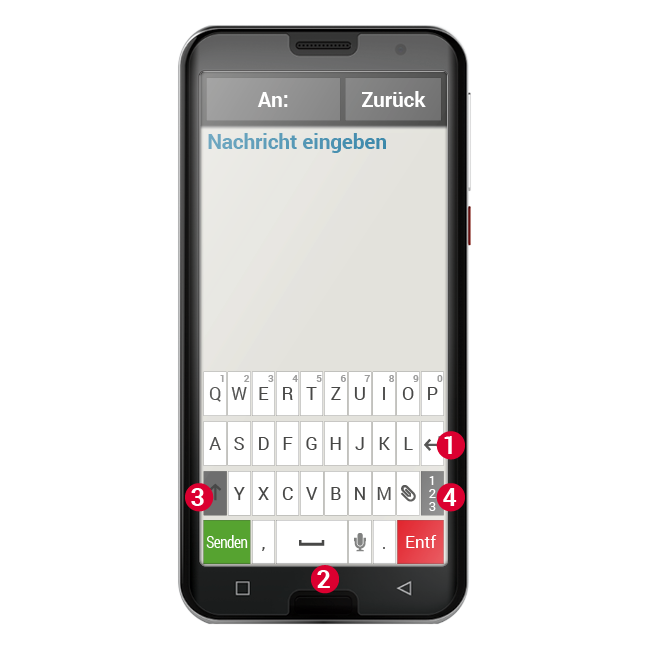
The return button (1) and space bar (2) are used particularly frequently. Tap the upward-pointing arrow (3) to switch to upper case, and the "123" button (4) to open the keyboard for numbers, symbols and emoticons (smileys).

Every QWERTY keyboard consists of four rows that display letters and various symbols. The exact content of the keyboard can vary depending on what you're using it for, because the symbols are adapted to your current task.
In the first row, each button has two functions: If you tap on a button briefly, the letter will be entered in the input field, and if you tap and hold the button, (i.e. don't lift your finger off straight away), the number on the button will appear.
Special characters

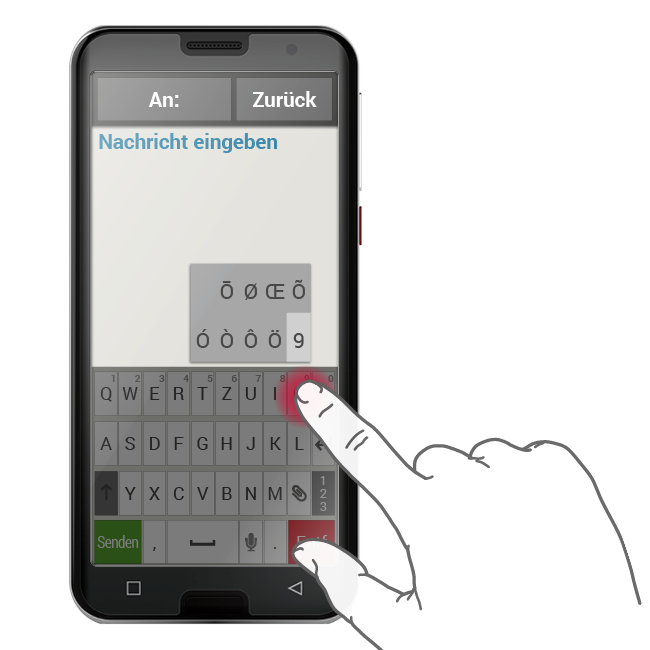
There are also other letters, vowels mainly, which can display other characters when they are tapped and held. These allow you to write things like letters with umlauts and special characters in other languages.

To write "ö", for example, tap and hold "o". In the additional area that now pops up, the number 9 is highlighted, which means it is currently selected.
If you lift your finger off the screen now, a 9 will be inserted in the text you're writing. To select the "ö" move your finger to the left until the "ö" is selected and only then lift your finger off the screen.

Cursor

In the text input field, you will see a flashing vertical line. This is the cursor. The position of the cursor is where text will be added when you write. If you want to correct a typing error, you can move the cursor back to wherever the mistake is in the text you've already written. Simply tap where the error is and the cursor will jump back to that point. This means you can correct typing errors easily without having to delete all the text in between your current position and the error with the backspace button.

Further options

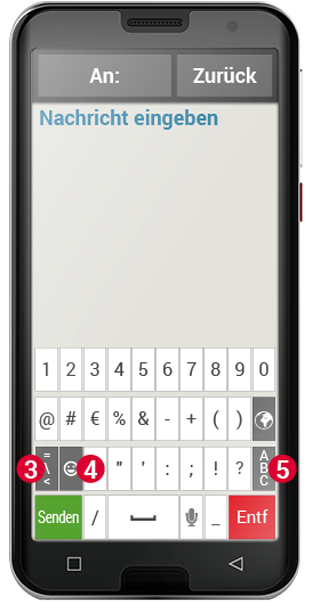
There are several different keyboards, which you can access by tapping the grey buttons.

(1) Switch to the keyboard with capital letters.
(2) Call up the keyboard displaying numbers and symbols.
(3) By tapping on this button, you can then switch again to another one with more symbols and to the keyboard with emoticons (4).
(5) Tap here to return to the standard letter keyboard

Tip: If you want to write text but the keyboard is not yet displayed, briefly tap the text input field.

Standard QWERTZ Tastatur

Sonderzeichen

Weitere Optionen

Sonderzeichen

Auch andere Buchstaben, vor allem die Vokale, können bei Tippen und Halten weitere Zeichen anzeigen. Auf diese Weise finden Sie z. B. die Umlaute oder auch Sonderzeichen anderer Sprachen.

Um z. B. das »ö« zu schreiben, tippen und halten Sie das »o«. Im Zusatzfeld, das nun sichtbar wird, ist die Ziffer 9 hell hinterlegt und somit ausgewählt.
Wenn Sie nun den Finger abheben, wird die 9 in den Text übernommen.
Um das »ö« auszuwählen, ziehen Sie den Finger nach links, bis das »ö« hell hinterlegt ist und heben dann erst den Finger vom Display.

Cursor

Im Texteingabefeld sehen Sie einen senkrechten blinkenden Strich, das ist der Cursor. Dort, wo der Cursor steht, wird Text hinzugefügt. Sollten Sie z. B. Tippfehler ausbessern wollen, können Sie den Cursor im bereits geschriebenen Text versetzen. Tippen Sie einfach an eine Stelle im Text, der Cursor für die Texteingabe springt dann dort hin. So können Sie auch einfach Tippfehler ändern, ohne den gesamten Text mit der Entfernen-Taste zu löschen.

Weitere Opionen

Es gibt mehrere unterschiedliche Tastaturen, Sie können sie über die grauen Tastenfelder aufrufen:
(1) Schalten Sie um auf die Tastatur mit den Großbuchstaben.
(2) Rufen Sie die Tastatur mit Zahlen und Zeichen auf.
(3) Hier können Sie dann noch weiterschalten auf weitere Symbole und auf die Tastatur mit den Emoticon-Symbolen (4).
(5) Hier können Sie zur Buchstabentastatur zurück. Wenn Sie Text schreiben wollen, aber die Tastatur ist noch nicht  eingeblendet, tippen Sie kurz auf das Texteingabefeld.

Tipp: Wenn Sie Text schreiben wollen, aber die Tastatur ist noch nicht eingeblendet, tippen Sie kurz auf das Texteingabefeld.