Google Messages
This application allows you to send and receive text messages (SMS) and picture messages (MMS).
Nowadays, SMS messages are often replaced by messenger services. Nevertheless, SMS messages are still useful, for example, if you want to send a text message to a contact who does not yet have a smartphone. SMS messages also work even if you do not have data reception.
Write a message
First, select the contact you want to write to.
- Open the Messages app.
- Open a contact from the list of recent chats.
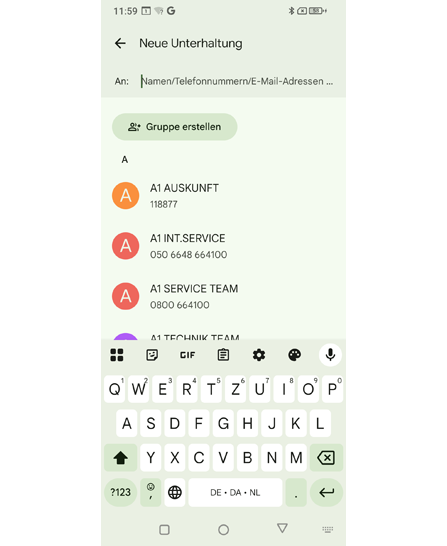
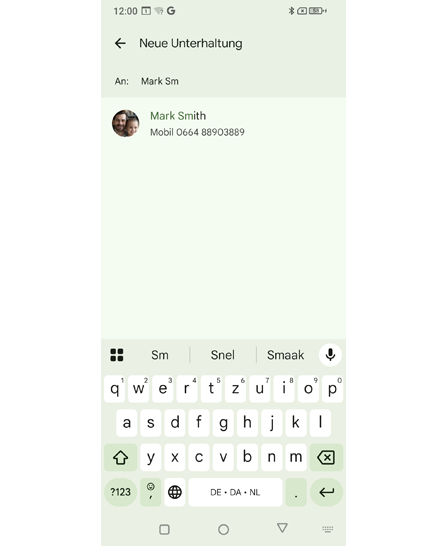
- Or tap the ‘Start chat’ field and enter the name or number of the recipient in the ‘To:’ input field.
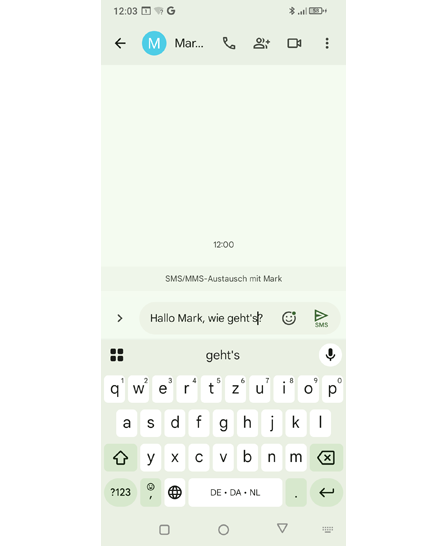
- Enter the text using the touchscreen keyboard.
- If the touchscreen keyboard does not open automatically, tap the ‘Text message’ field.
Read message
A notification will alert you when you have received a new message. Open the Messages app and find the new message at the top of the list of chats.
Delete message or message history
Want to delete the entire chat (message history)?
- Open the chat you want to delete.
- Tap the options menu icon (three dots) in the top right corner.
- Select ‘Delete’ and confirm the pop-up question.
Want to delete a single message from the chat?
- Open the chat.
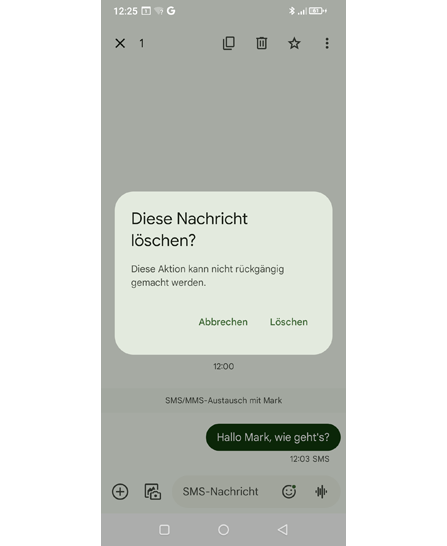
- Tap and hold the message you want to delete until it is highlighted.
- Tap the trash can icon.
- Confirm the pop-up window by selecting ‘Delete’.
Forward a message
- Open the message history from which you want to forward a message.
- Tap and hold the message you want to forward until it is highlighted.
- Tap the options menu icon (three dots) in the top right corner.
- Select ‘Forward’ and then ‘New message’.
- The text will be copied into a new SMS message.
- Add the recipient, edit the text if necessary, and send the message.
Google Messages
This application allows you to send and receive text messages (SMS) and picture messages (MMS).
Nowadays, SMS messages are often replaced by messenger services. Nevertheless, SMS messages are still useful, for example, if you want to send a text message to a contact who does not yet have a smartphone. SMS messages also work even if you do not have data reception.
Write a message
First, select the contact you want to write to.
- Open the Messages app.
- Open a contact from the list of recent chats.
- Or tap the ‘Start chat’ field and enter the name or number of the recipient in the ‘To:’ input field.
- Enter the text using the touchscreen keyboard.
- If the touchscreen keyboard does not open automatically, tap the ‘Text message’ field.
Read message
A notification will alert you when you have received a new message. Open the Messages app and find the new message at the top of the list of chats.
Delete message or message history
Want to delete the entire chat (message history)?
- Open the chat you want to delete.
- Tap the options menu icon (three dots) in the top right corner.
- Select ‘Delete’ and confirm the pop-up question.
Want to delete a single message from the chat?
- Open the chat.
- Tap and hold the message you want to delete until it is highlighted.
- Tap the trash can icon.
- Confirm the pop-up window by selecting ‘Delete’.
Forward a message
- Open the message history from which you want to forward a message.
- Tap and hold the message you want to forward until it is highlighted.
- Tap the options menu icon (three dots) in the top right corner.
- Select ‘Forward’ and then ‘New message’.
- The text will be copied into a new SMS message.
- Add the recipient, edit the text if necessary, and send the message.
Google Messages
This application allows you to send and receive text messages (SMS) and picture messages (MMS).
Nowadays, SMS messages are often replaced by messenger services. Nevertheless, SMS messages are still useful, for example, if you want to send a text message to a contact who does not yet have a smartphone. SMS messages also work even if you do not have data reception.
Write a message
First, select the contact you want to write to.
- Open the Messages app.
- Open a contact from the list of recent chats.
- Or tap the ‘Start chat’ field and enter the name or number of the recipient in the ‘To:’ input field.
- Enter the text using the touchscreen keyboard.
- If the touchscreen keyboard does not open automatically, tap the ‘Text message’ field.
Read message
A notification will alert you when you have received a new message. Open the Messages app and find the new message at the top of the list of chats.
Delete message or message history
Want to delete the entire chat (message history)?
- Open the chat you want to delete.
- Tap the options menu icon (three dots) in the top right corner.
- Select ‘Delete’ and confirm the pop-up question.
Want to delete a single message from the chat?
- Open the chat.
- Tap and hold the message you want to delete until it is highlighted.
- Tap the trash can icon.
- Confirm the pop-up window by selecting ‘Delete’.
Forward a message
- Open the message history from which you want to forward a message.
- Tap and hold the message you want to forward until it is highlighted.
- Tap the options menu icon (three dots) in the top right corner.
- Select ‘Forward’ and then ‘New message’.
- The text will be copied into a new SMS message.
- Add the recipient, edit the text if necessary, and send the message.
Google Messages
This application allows you to send and receive text messages (SMS) and picture messages (MMS).
Nowadays, SMS messages are often replaced by messenger services. Nevertheless, SMS messages are still useful, for example, if you want to send a text message to a contact who does not yet have a smartphone. SMS messages also work even if you do not have data reception.
Write a message
First, select the contact you want to write to.
- Open the Messages app.
- Open a contact from the list of recent chats.
- Or tap the ‘Start chat’ field and enter the name or number of the recipient in the ‘To:’ input field.
- Enter the text using the touchscreen keyboard.
- If the touchscreen keyboard does not open automatically, tap the ‘Text message’ field.
Read message
A notification will alert you when you have received a new message. Open the Messages app and find the new message at the top of the list of chats.
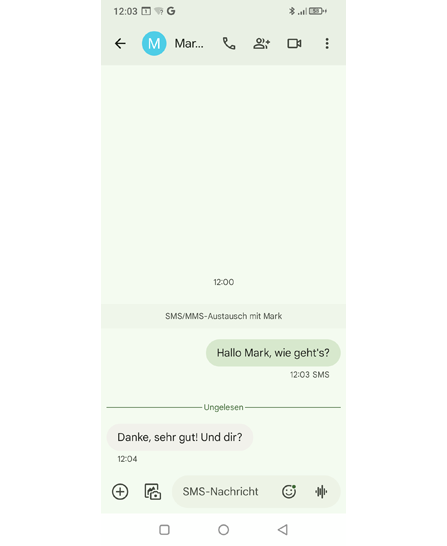
Delete message or message history
Want to delete the entire chat (message history)?
- Open the chat you want to delete.
- Tap the options menu icon (three dots) in the top right corner.
- Select ‘Delete’ and confirm the pop-up question.
Want to delete a single message from the chat?
- Open the chat.
- Tap and hold the message you want to delete until it is highlighted.
- Tap the trash can icon.
- Confirm the pop-up window by selecting ‘Delete’.
Forward a message
- Open the message history from which you want to forward a message.
- Tap and hold the message you want to forward until it is highlighted.
- Tap the options menu icon (three dots) in the top right corner.
- Select ‘Forward’ and then ‘New message’.
- The text will be copied into a new SMS message.
- Add the recipient, edit the text if necessary, and send the message.
Google Messages
This application allows you to send and receive text messages (SMS) and picture messages (MMS).
Nowadays, SMS messages are often replaced by messenger services. Nevertheless, SMS messages are still useful, for example, if you want to send a text message to a contact who does not yet have a smartphone. SMS messages also work even if you do not have data reception.
Write a message
First, select the contact you want to write to.
- Open the Messages app.
- Open a contact from the list of recent chats.
- Or tap the ‘Start chat’ field and enter the name or number of the recipient in the ‘To:’ input field.
- Enter the text using the touchscreen keyboard.
- If the touchscreen keyboard does not open automatically, tap the ‘Text message’ field.
Read message
A notification will alert you when you have received a new message. Open the Messages app and find the new message at the top of the list of chats.
Delete message or message history
Want to delete the entire chat (message history)?
- Open the chat you want to delete.
- Tap the options menu icon (three dots) in the top right corner.
- Select ‘Delete’ and confirm the pop-up question.
Want to delete a single message from the chat?
- Open the chat.
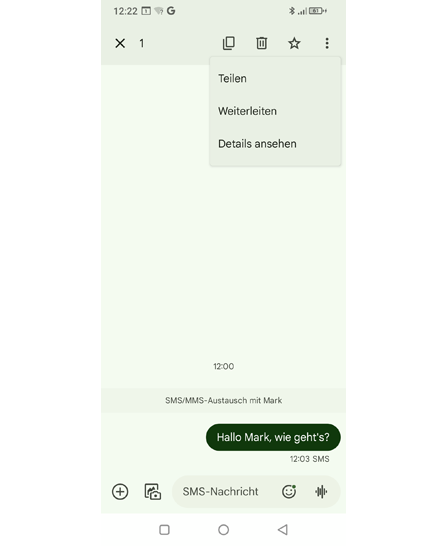
- Tap and hold the message you want to delete until it is highlighted.
- Tap the trash can icon.
- Confirm the pop-up window by selecting ‘Delete’.
Forward a message
- Open the message history from which you want to forward a message.
- Tap and hold the message you want to forward until it is highlighted.
- Tap the options menu icon (three dots) in the top right corner.
- Select ‘Forward’ and then ‘New message’.
- The text will be copied into a new SMS message.
- Add the recipient, edit the text if necessary, and send the message.