WhatsApp

Setup

Before you can use WhatsApp, you need to complete a few preparatory steps.

1. Install WhatsApp

First, open the App Installer or Google Play Store to find the WhatsApp application. Download WhatsApp and install the app.

2. Open WhatsApp

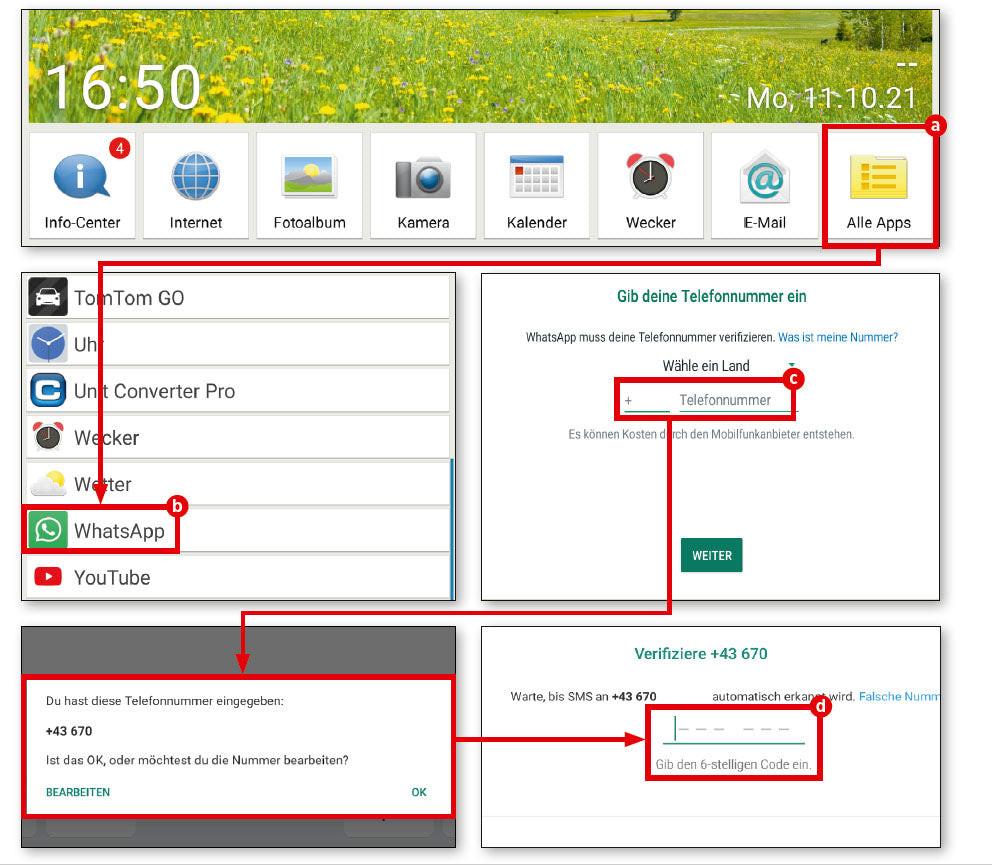
First, tap on ‘all apps(a), scroll down and then select ‘WhatsApp’ (b).

3. Enter your phone number

Even though WhatsApp works independently of your SIM card via Wi-Fi, the service is connected to an existing mobile phone number, which you must enter when you first start the app (c).

4. Enter verification code

Enter this in the field provided and check the subsequent verification query to make sure you haven't made a typing error. Then wait for an SMS with a code, which you must enter in the text field that now appears (d). WhatsApp is then ready to use.

The first chat

Once WhatsApp is set up, you're ready to go. Just start a chat with someone of your choice.

1. Contact list

WhatsApp accesses the internal contact list of your mobile device. If you haven't already done so, you'll need to complete this first.


2. Possible contacts

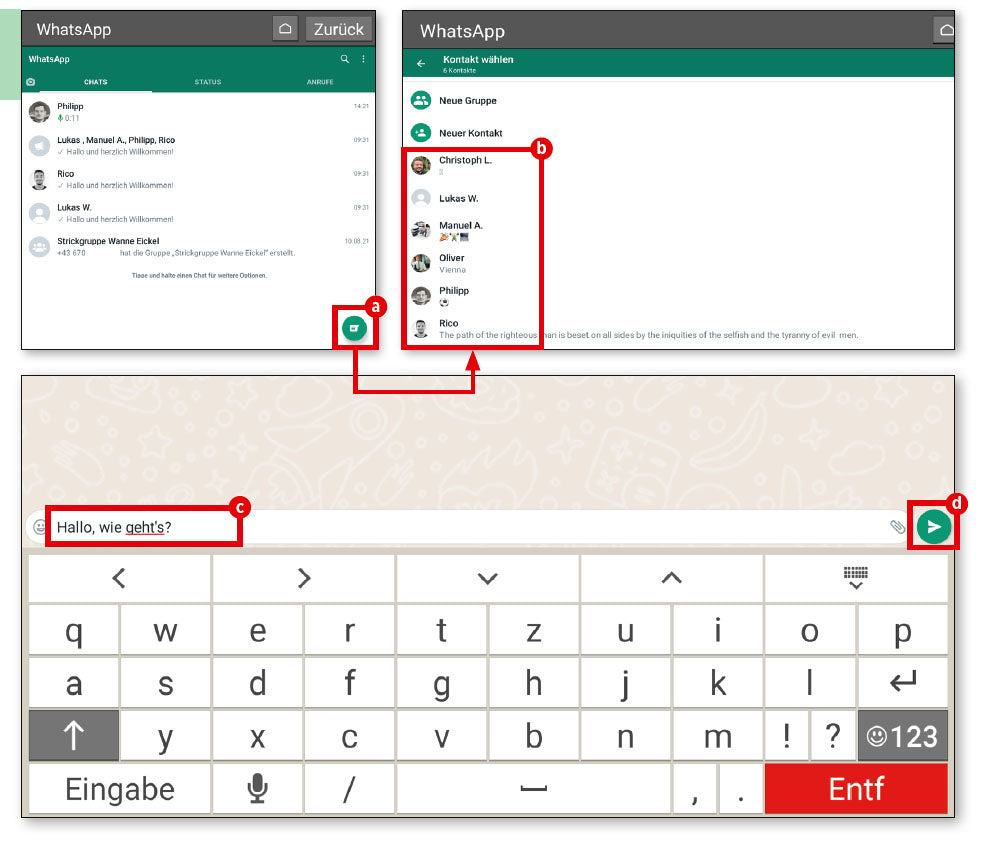
WhatsApp uses your personal phone register to check which of your contacts are also using this service. In the empty chat window, tap the green button in the bottom right-hand corner (a). Your saved contacts will now appear (b). Select the person you want to chat with.

3. Start writing

The rest is very simple. Type your message in the input field (c) and send it by tapping the send button (d).
Sending photos

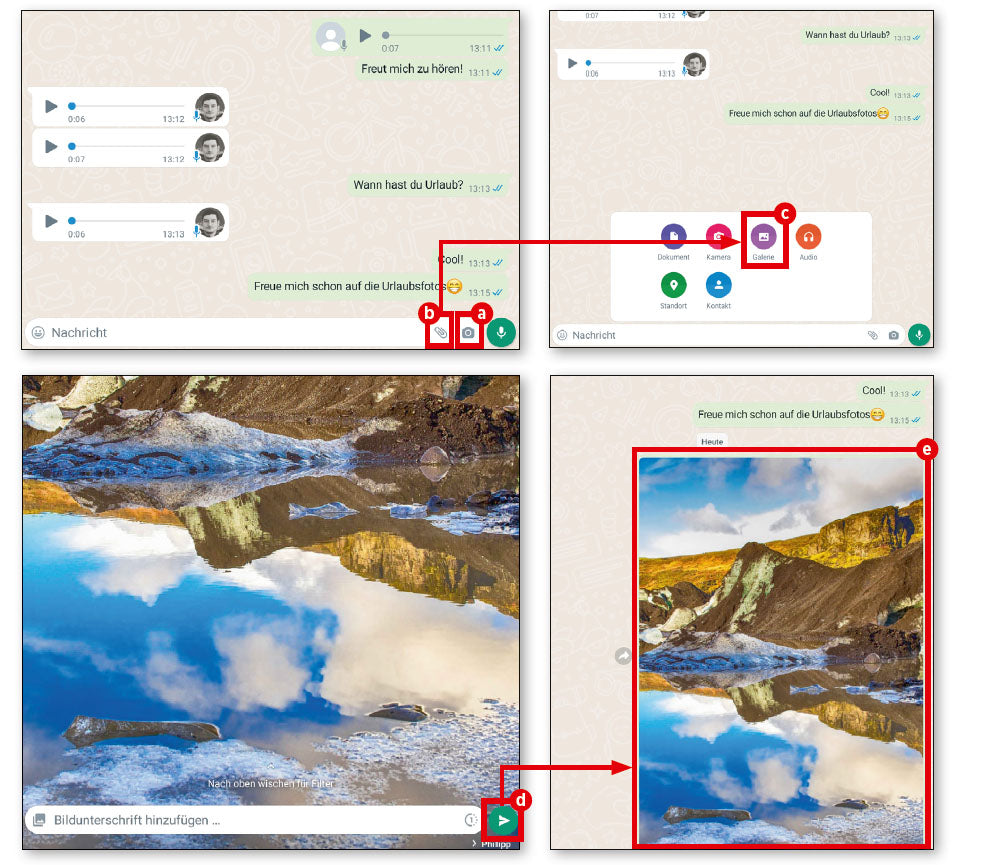
You can take photos directly via WhatsApp and send them. The function for this is not far away during an ongoing chat.

1. Sending photos

We are in an ongoing chat. On the right-hand side of the text window, you will find a small button with a camera icon (a). Tap this to take a photo directly. Alternatively, tap the paperclip icon (b) and then ‘Gallery’ (c) and select a photo you have already taken from your image collection.

2. Confirm

Once you have selected a photo, a preview will appear. If you wish, you can add a comment to the image before sending it. The usual text field is available for this purpose. Tap the arrow in the lower right corner (d) to send the photo. After sending, the image will be displayed as a thumbnail in the chat window (e).

WhatsApp groups

If you want to chat with several people who may live far apart geographically, simply create a WhatsApp group where you can all discuss things with each other.

1. New group

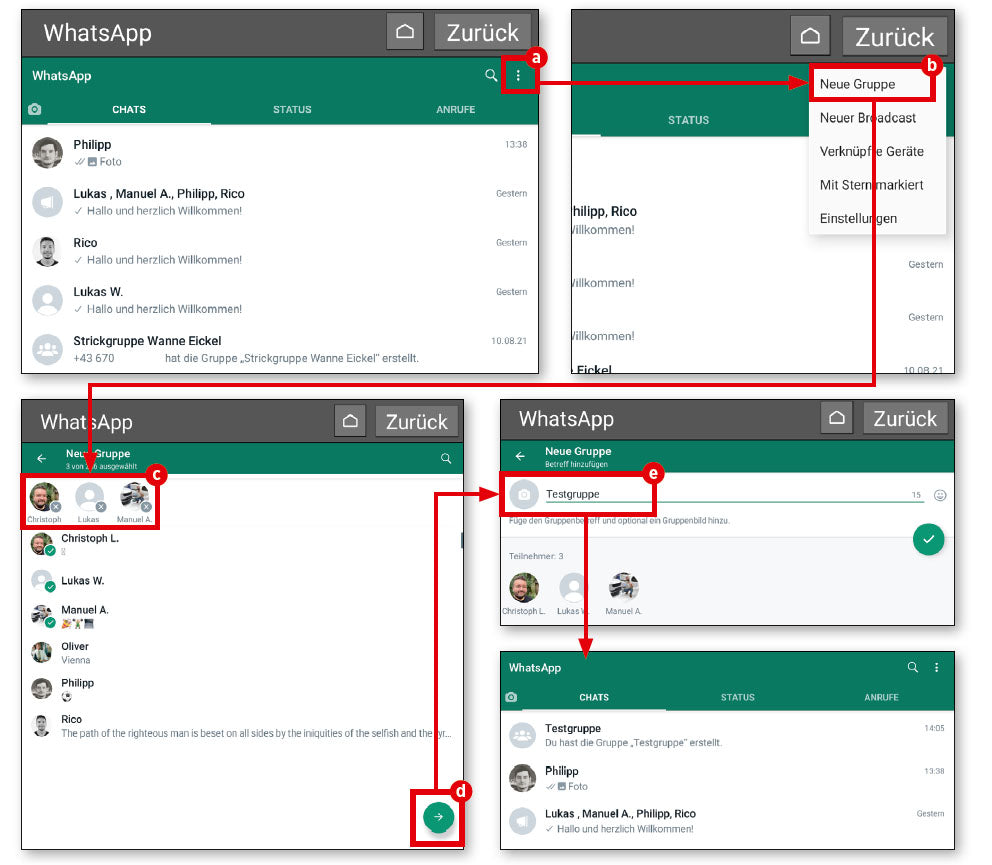
Open the menu (a) in the top right-hand corner and tap on ‘New group’ (b).

2. Contacts

The contact list described above will appear. Select the people you want to invite to the group. Selected contacts are displayed separately at the top of the window (c). Then tap on the arrow icon at the bottom right (d).

3. Group name

To help you find the group you have created, it is a good idea to name it. WhatsApp will then ask you to give your group a meaningful name (e).


Broadcast

You don't have to create a new group if you want to send the same message to several people. There is a broadcast function for this.

1. Almost the same

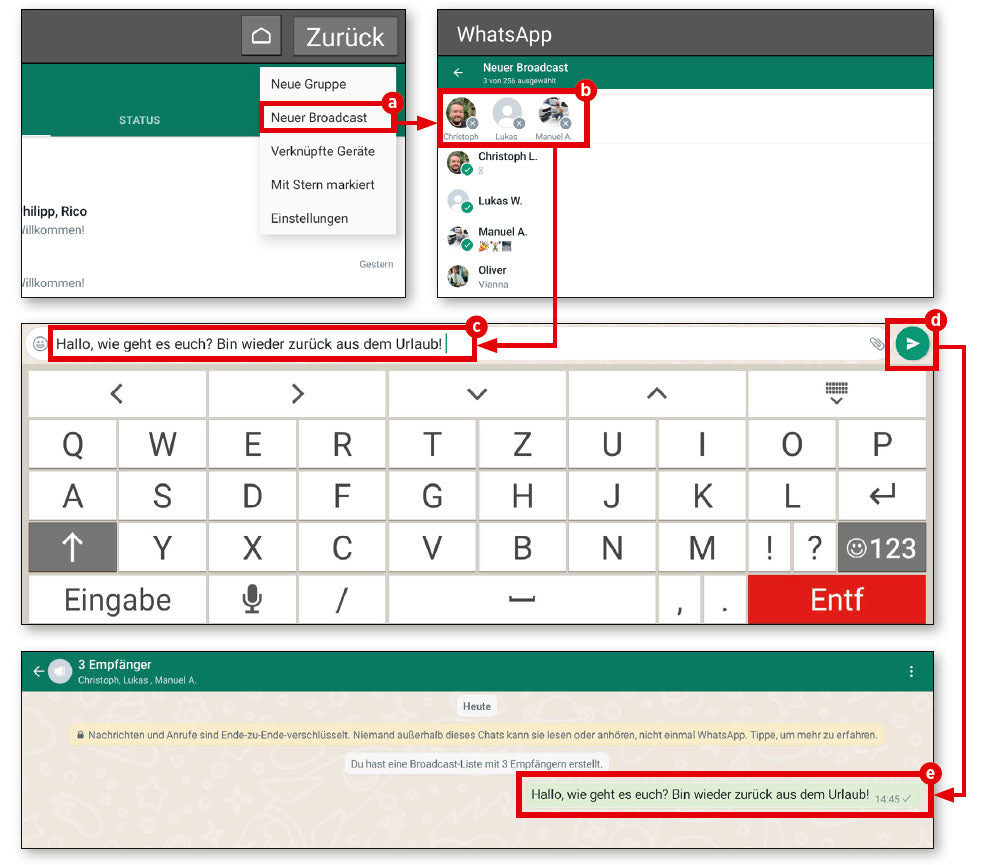
The procedure is similar to creating a group. Simply tap on ‘New Broadcast’ (a) and add the people you want to write to (b). This time, you do not need to give the group a name.

2. Send message

Simply tap on the tick button and then enter your message (c). Finally, tap on the ‘Send’ button (d). The message will then be sent immediately to all previously selected contacts (e).