emporia e-mail

Setting up an existing email account on your smartphone

Do you already use email on your PC and now want to read and write emails on your smartphone too?

To set up your email account on your smartphone, you first need the account details:

• What is the email address?

• What is the corresponding password?

Displaying newly received emails

When you receive an email, the LED indicator on your smartphone flashes and a notification is displayed in the info centre.

Open the Info centre and tap on the notification to display the new email. You can also open the Email app in the All apps list to go directly to your Inbox.
Writing an email

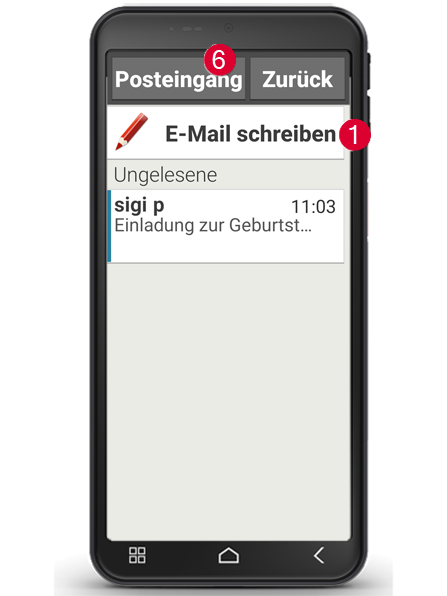
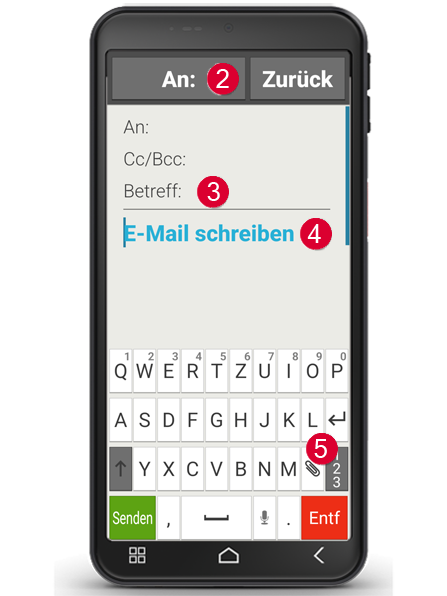
When you open an email app, you will usually be taken directly to your inbox. Many apps have a pencil icon here that you can tap to open the input window for writing emails. With the pre-installed emporia app, you need to tap on the Write email field (1). Just like when writing an email on a computer, enter the recipient in the To line (2), enter a subject (3) and write your message in the text field (4). You can use the paperclip icon in the keyboard field to attach data such as photos (5), then send the email.

Tip: In the Cc line, enter recipients who should receive a copy of the email. If you want to send an email to several recipients at the same time and do not want them to see each other's email addresses, enter all addresses in the Bcc line.

Displaying old emails

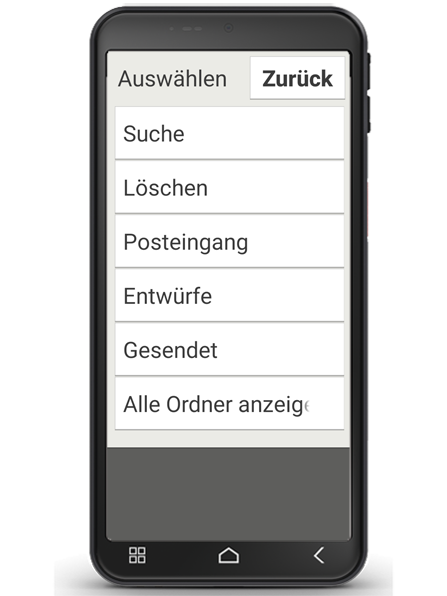
Each email account is divided into different folders, e.g. Inbox, Sent emails, Drafts, etc. In the emporia email app, you can switch to other folders by tapping on the Inbox (6) field.

Deleting an email account

To do this, open the Settings, display all Accounts linked to this smartphone. Select the email account you want to delete and tap Remove account.

E-Mail empfangen und lesen

E-Mail schreiben und senden

E-Mail schreiben

Wenn Sie eine E-Mail-App öffnen, sind Sie meist direkt im Posteingang. Bei vielen Apps finden Sie hier ein Symbol mit einem Stift, um das Eingabefenster zum E-Mail schreiben zu öffnen. Bei der vorinstallierten App von emporia müssen Sie auf das Feld E-Mail schreiben (1) tippen. Genau wie beim E-Mail Schreiben am Computer, geben Sie nun den Empfänger in der An-Zeile (2) ein, tragen einen Betreff (3) ein und schreiben Ihre Nachricht in das Textfeld (4). Mit der Büroklammer im Tataturfeld können Sie noch Daten wie z. B. Fotos anhängen (5), dann schicken Sie die E-Mail ab.

Tipp: In der Cc-Zeile tragen Sie Empfänger ein, die eine Kopie der E-Mail erhalten sollen. Wenn Sie eine E-Mail gleichzeitig an mehrere Empfänger schicken wollen, die die E-Mail-Adressen der anderen nicht sehen sollen, schreiben Sie alle Adressen in die Bcc-Zeile.


Alte E-Mails anzeigen

Jedes E-Mail-Konto ist in verschiedene Ordner unterteilt, z. B. Posteingang, Gesendete Mails, Entwürfe usw. In der emporia E-Mail-App können Sie auf andere Ordner umschalten, wenn Sie auf das Feld Posteingang (6) tippen.


E-Mail-Konto löschen

Öffnen Sie dazu in den Einstellungen die Anzeige aller Konten, die mit diesem Smartphone verknüpft sind. Wählen Sie das E-Mail-Konto aus, das Sie löschen wollen und tippen Sie auf Konto entfernen.