Google maps
Google Maps is the standard software when it comes to navigation by car, public transport, bicycle or on foot. The Maps charts over 220 countries and countless businesses and locations. Real-time GPS data and information on traffic conditions and public transport help every user find their way around quickly.
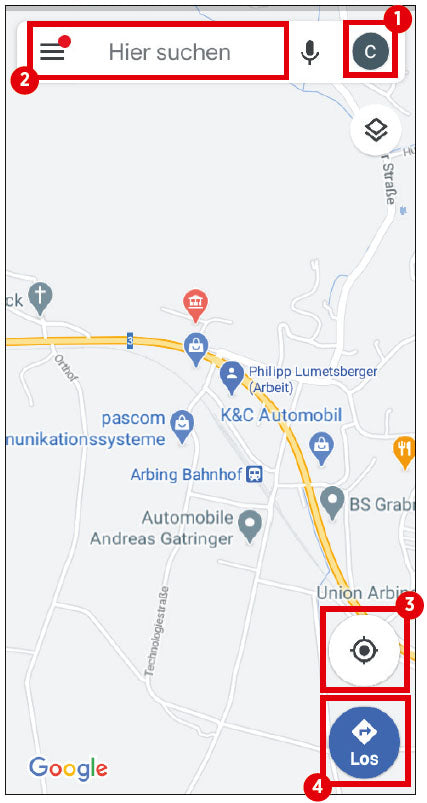
(1) Profile icon
Tap the icon to open the app menu. Here you can manage your Google account or activate incognito mode, among other things.
(2) Search bar
If you want to search for a specific location, you can enter it here.
(3) Location detection
After tapping this button, the app determines your location and displays it as a blue dot.
(4) Start navigation
Use this button to start the navigation function. Before starting the actual navigation, you must specify your destination and the mode of transport you are using.
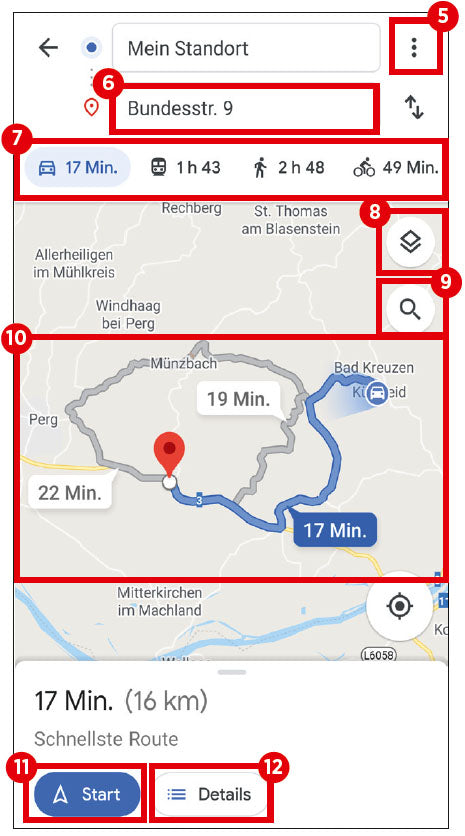
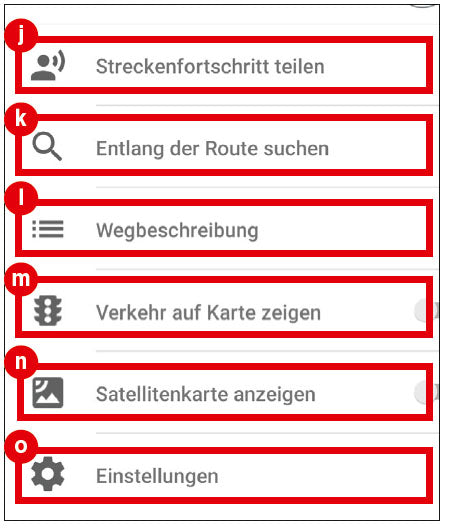
(5) Menu
This icon takes you to the route options. Here you can also add stopovers, set the start and arrival times, and share your location and directions.
(6) Destination
Here you can enter the location to which you want the Google Maps app to navigate from your current location.
(7) Choice of transport
In this line, you specify the mode of transport you will use to cover the distance. Simply tap to select your preferred mode of transport.
(8) Change view
Use this button to switch between standard, satellite and terrain view.
(9) Search function
Tapping the magnifying glass icon opens a search window where you can search for various locations, such as restaurants or supermarkets, along the route.
(10) Route preview
This area shows you the available routes from your current location to your desired destination, including time estimates. By default, Google Maps selects the fastest route.
(11) Start navigation
Google Maps starts navigation immediately after you tap this button.
(12) Route details
The ‘Details’ button lists all the roads to be travelled on the respective route in text form.