emporia Internet

One of the main advantages of having a smartphone is the fact that you can use it to connect to the Internet and access all the information that is provided there. But how does searching work and how do you find the right website?


What is a Browser?


Like you do on a computer, you use a browser on a smartphone to search for information on the Internet. The emporia Internet app is such a browser, while Google offers its Google Chrome browser among its tools.

Think of a browser as a portal to the Internet:

  • You state what information you're looking for.
  • The browser will search the Internet for the term you've entered and
  • come up with a list of web pages that provide information connected to the term.
  • You then select and open a web page from the list.
  • The browser will also remember the most recent web pages you've visited, so that you can easily find information again later on.
  • In addition, you can bookmark important web pages.
How do I search for information on the Internet?

What you need:

  • An Internet connection (via Wi-Fi or mobile data)

What to do:

  • Open the Internet app.
  • The search bar is the main element of the browser.
    It is where you enter search terms you want to find information on.
  • Tap in the search bar to open the keyboard.
  • Enter a search term.
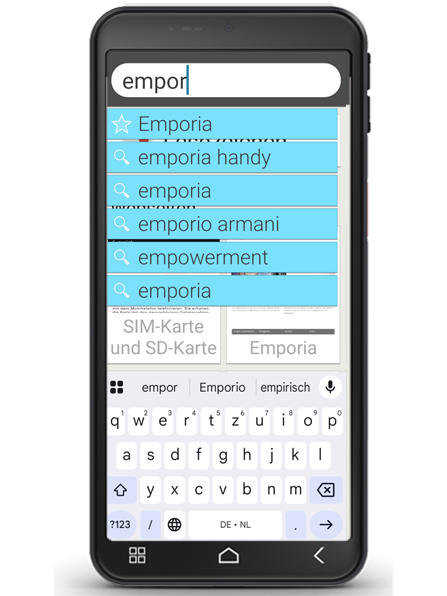
  • When the term you're looking for appears, you can tap on the suggested word(s), or you can finish entering your term and then confirm you want to search for it by tapping on "Go".
  • The browser will now search the Internet for web pages related to your search term.
  • The results of your search will be displayed as a list of web pages.
    The domain of each website will be written underneath the respective site's title.
  • The domain is the address of the web page. Each web page
    will also be accompanied by a short description, which can help you decide whether the page will be of interest to you.
  • A suggested web page will only open when you tap on its domain. Tap on "Back" to return to the list of search results.
 

How do you remember a website?

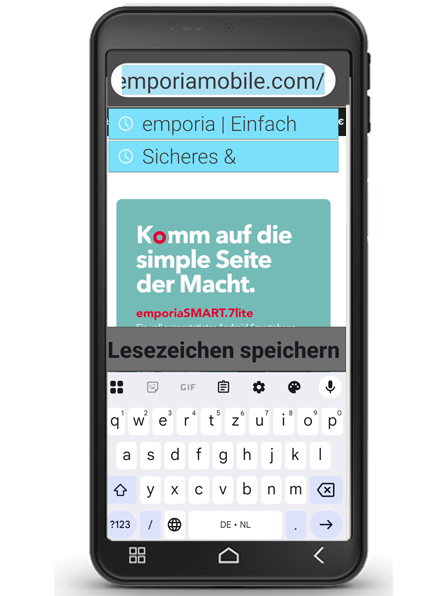
To avoid having to constantly type in the name of your favourite website, you can simply save it as a favourite. To do this, open the desired website (a) and tap on the line ‘Search or enter URL(b,c,d). Then tap on ‘Save bookmark(e). You can also customise the name of the bookmark if you wish.


Open bookmarks

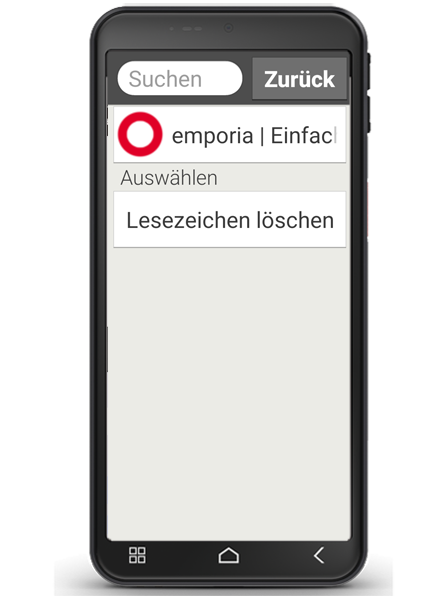
Directly below the ‘Search’ field, under the ‘Bookmarks’ button (f), you will find a clear list of your saved websites (g). Tap on an entry to open the corresponding website.


Browsing history

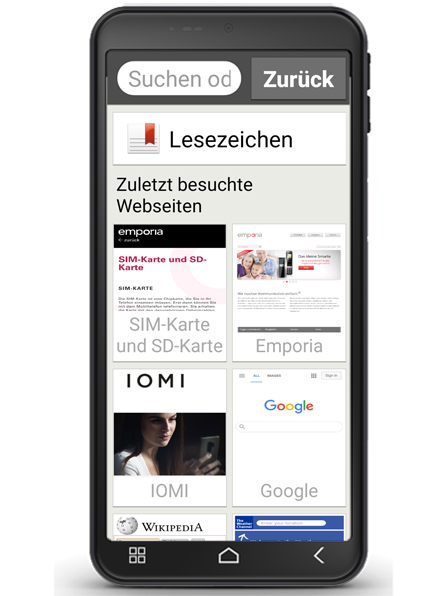
The browser's start screen displays your most recently visited websites in the form of small preview windows (h). Simply tap to open the page. The ‘Back’ button (i) takes you back to the previously opened window while surfing. At the end of the list, you will find the ‘Clear history’ button (j). If you tap on this, you will automatically be asked if you want to delete your browser history. If you do want to delete the history, tap on ‘Yes’.

emporia Browser

Nach Information suchen

Website als Lesezeichen speichern

Wie merkt man sich eine Webseite?

Damit Sie nicht ständig den Namen Ihrer Lieblingswebseite eintippen müssen, können Sie diese ganz einfach als Favorit abspeichern. Hierfür rufen Sie die gewünschte Webseite auf und tippen lange auf die Zeile „Suchen oder URL eingeben“. Anschließend tippen Sie auf „Lesezeichen speichern“.
Optional lässt sich der Name des Lesezeichens anpassen. 


Lesezeichen öffnen

Direkt unter dem Feld „Suchen“ finden Sie unter der Schaltfläche „Lesezeichen“ Ihre gespeicherten Webseiten übersichtlich aufgelistet. Durch Antippen eines Eintrags wird die jeweilige Webseite geöffnet.


Browserverlauf

Am Startbildschirm des Browsers werden Ihre zuletzt besuchten Webseiten in Form von kleinen Vorschaufenstern angezeigt. Ein Tipp genügt, um die Seite aufzurufen. Über den Button „Zurück“ gelangen Sie während des Surfens zurück zu dem zuvor geöffneten Fenster. Am Ende der Auflistung finden Sie die Schaltfläche „Verlauf löschen“ . Wird diese angetippt, werden Sie automatisch gefragt, ob Sie Ihren Browserverlauf löschen möchten. Wenn Sie den Verlauf tatsächlich löschen möchten, tippen Sie auf „Ja“.