Google Playstore

Searching for apps in the Play Store

1. Play Store app

You can find the Play Store app in the ‘all apps’ menu item on your home screen.

Tap on it and scroll down to the ‘Play Store’ entry.

2. The search bar

Tap on the ‘Play Store’ entry.

Immediately after launching the app, the search bar appears at the top of the home page.

3. Enter search term

At this point, we assume that you know which app you are looking for. Activate the search field, the on-screen keyboard will open and you can enter any search term. As you type, the app will show you specific suggestions based on your input.

Download apps

Once you have found the app of your dreams, you can install it. If your chosen app is compatible with your device, you can get started right away.

Install

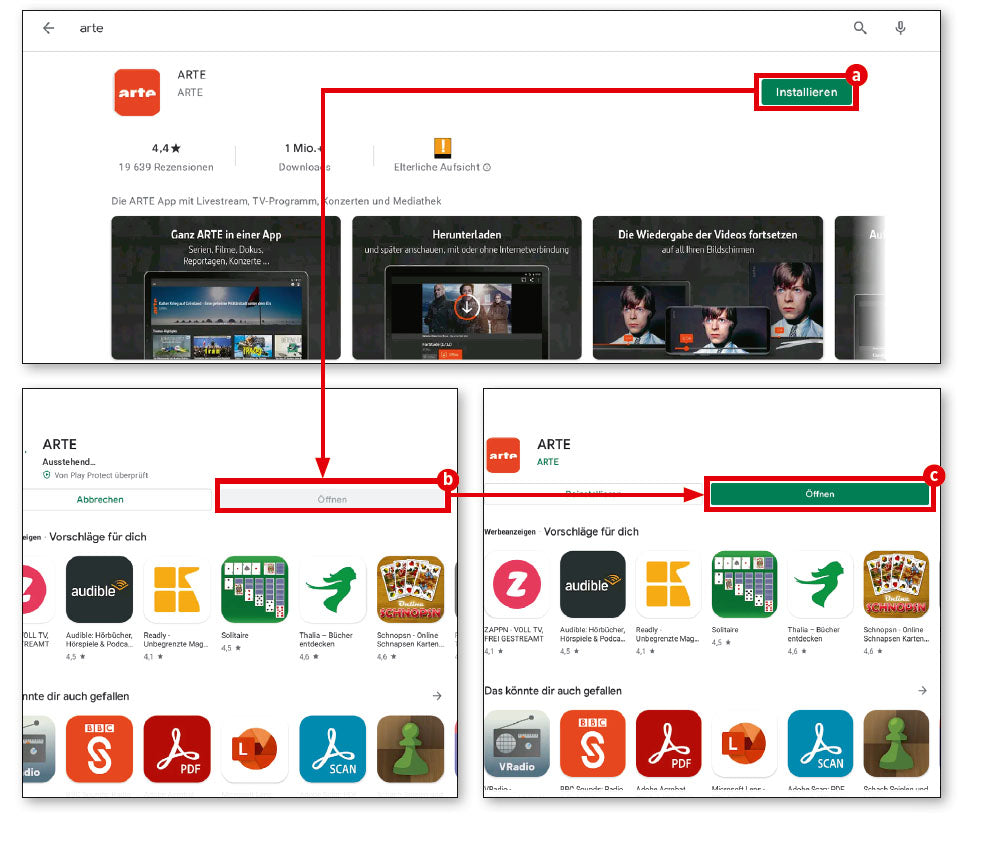
If the desired app is free and can be installed on your device, a green button labelled ‘Install(a) will appear. If it is a paid app, the price will appear instead.


Installation process

During installation, the ‘Open’ button (b) is inactive. Once installation is complete, it will turn green and can be tapped to open the app for the first time (c). You will then find this app like any other app in your tablet's app menu, which you can access via ‘all apps’.

Films, games and books

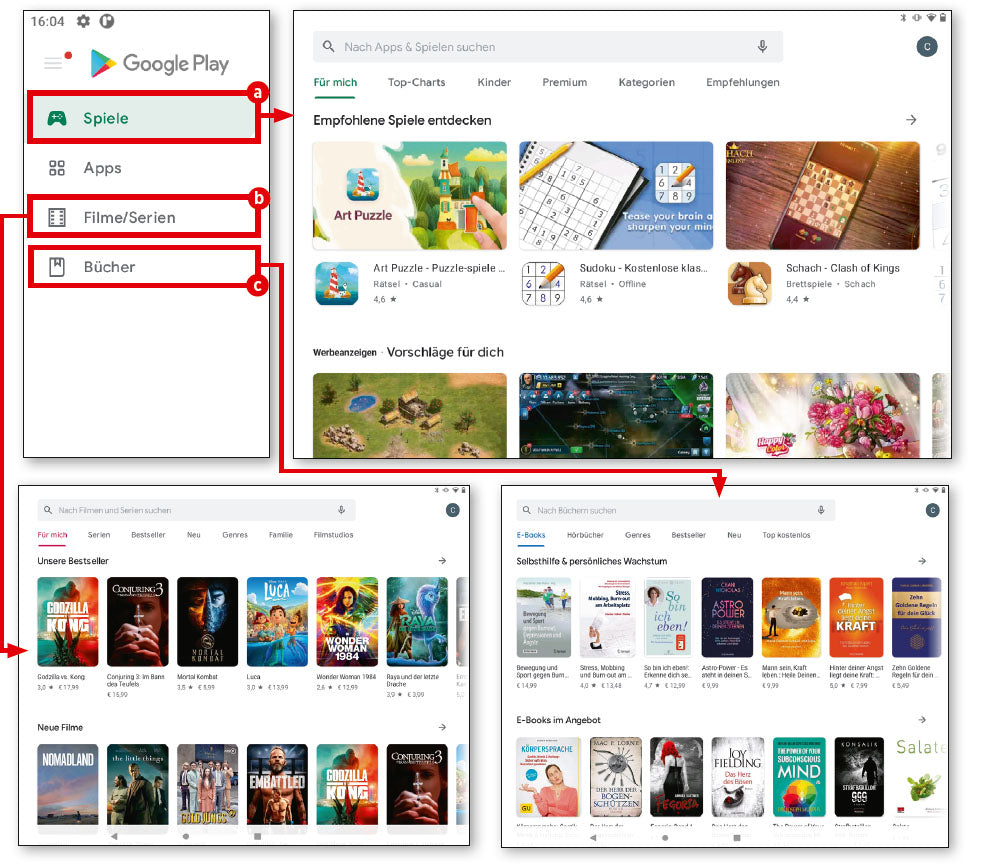
In addition to apps, the Play Store also offers games, films and books that you can download or stream.

The path to more fun

Naturally, the Play Store primarily offers apps. However, the rest is not that far away, as the corresponding buttons are already located at the top left of the sidebar.

Games and more

This takes you to games, books and films in no time at all. The search and download process is then no different from that described above for apps.

Updates

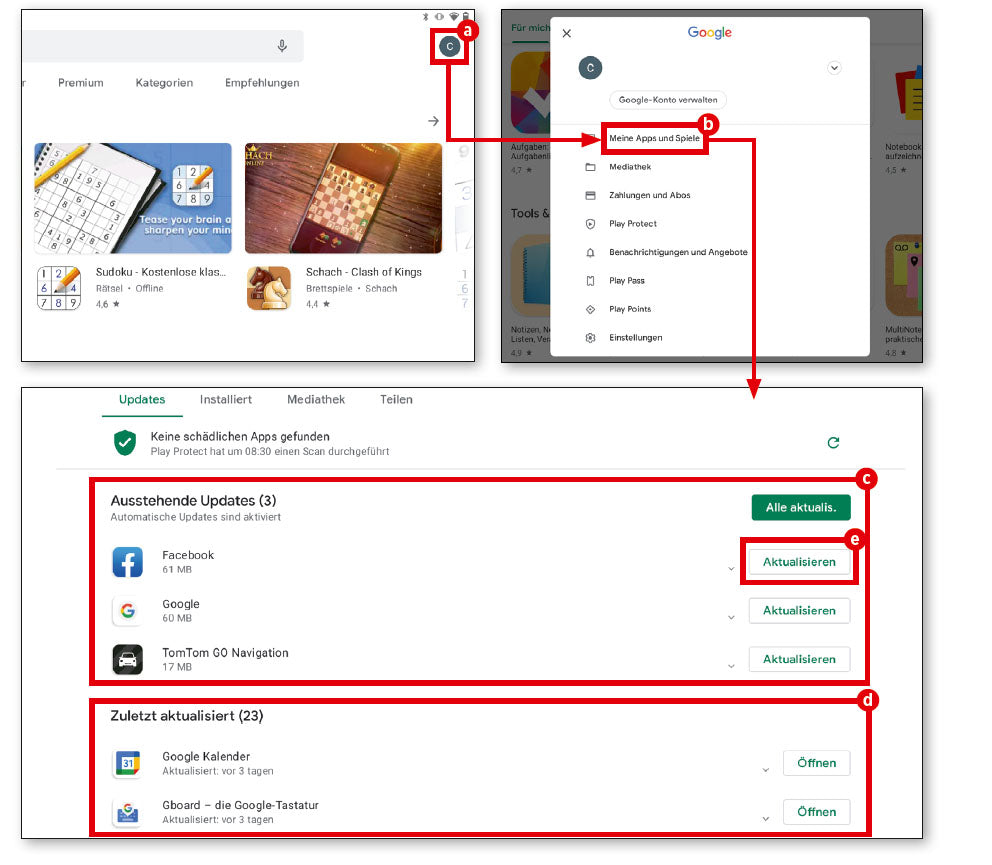
Apps are constantly being developed and are usually available to users free of charge. You can find out the status of your apps by going to the ‘My apps and games’ section.

My apps and games

At the top right, you will find a round button with your initials or your profile picture. Tap on it. In the menu that appears, select ‘My apps and games’.

Open apps and games

All apps and games are now displayed. There are two types of updates: those that require new access rights. These updates must be started manually. Updates that do not require any special user interaction are usually performed automatically in the background and are displayed in the ‘Recently updated’ section.

To start updates manually, simply tap the ‘Update’ button next to the app in question.

Apps im Playstore suchen

Apps herunterladen

Filme, Spiele und Bücher

Neben Apps biete der Play Store auch Spiele, Filme und Bücher an, die Sie herunterladen, beziehungsweise streamen können.

Der Weg zu mehr Spaß
Naturgemäß bietet der Play Store zunächst die Apps an. Der Rest ist allerdings gar nicht so schrecklich weit entfernt, denn links oben in der Seitenleiste befinden sich bereits die entsprechenden Schaltflächen.

Spiele und mehr
Darüber gelangen Sie ruckzuck zu den Spielen, den Büchern und zu den Filmen. Der Such- und Downloadvorgang ist dann nicht anders als bei den Apps zuvor beschrieben.


Updates

Apps werden ständig weiterentwickelt und stehen Nutzern meist kostenlos zur Verfügung. Auf welchem Stand Ihre Apps sind, erfahren Sie, indem Sie die Rubrik „Meine Apps und Spiele“ aufrufen.

Meine Apps und Spiele
Rechts oben finden Sie eine runde Schaltfläche mit dem Kürzel Ihres Namens oder Ihrem Profilbild. Tippen Sie diese an. Im nachfolgenden Menü wählen Sie den Eintrag “Meine Apps und Spiele”.

Apps und Spiele öffnen
Nun werden sämtliche Apps und Spiele angezeigt. Es ist zwischen zwei Sorten Updates zu unterscheiden: Da sind einmal jene, die neue Zugriffsrechte erfordern. Diese Updates müssen manuell gestartet werden. Updates, die keine besondere Nutzerinteraktion erfordern, erfolgen stattdessen in der Regel automatisch im Hintergrund und werden in der Rubrik „Zuletzt aktualisiert“ angezeigt .
Um Updates manuell zu starten, tippen Sie einfach die Schaltfläche „Aktualisieren“ neben der in Frage kommenden App an.