emporia Camera
This application enables you to capture photos, record videos and take selfies.
How do I turn the camera on?
There is more than one way to do this:
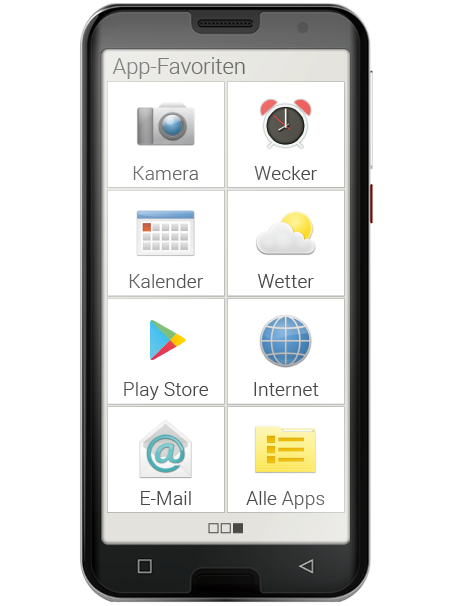
- App screen: Open the app screen by swiping a finger across the home
- screen from right to left. Next, tap on the camera icon to open the Camera app.
- In the photo album: Open the photo album on the home screen and tap on "Take photo".
How do I take a photo?
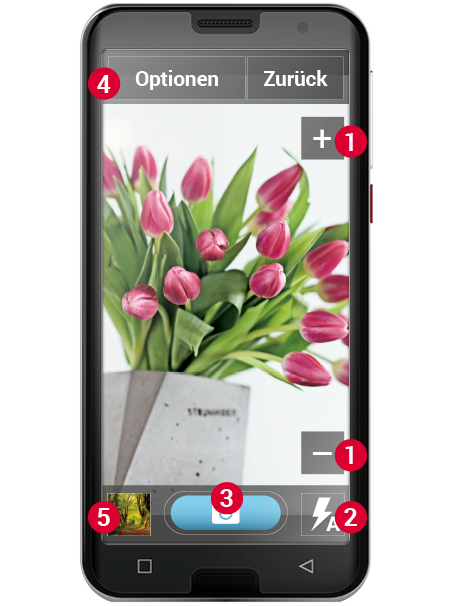
The screen will automatically show you the camera's current subject, i.e. whatever the lens of the camera is focusing on at the moment.
In addition, you will see various highlighted menu items that allow you to adjust the camera. These settings will help you take pictures of
the highest possible quality.
Zoom: The + and - (1) buttons enable you to choose how much of your subject you photograph.
- + will zoom the lens in and bring you closer to the subject, (i.e. enlarge it).
- - will zoom the lens out and take you further away from the subject, (i.e. shrink it).
(2) Flash settings: You can tap the flash icon once or several times to select "Flash on", "Flash off" or "Auto flash". When auto flash is on, the camera will use the flash when there is insufficient ambient light.
(3) Trigger: Tap on the camera icon on the blue button to take a photo.
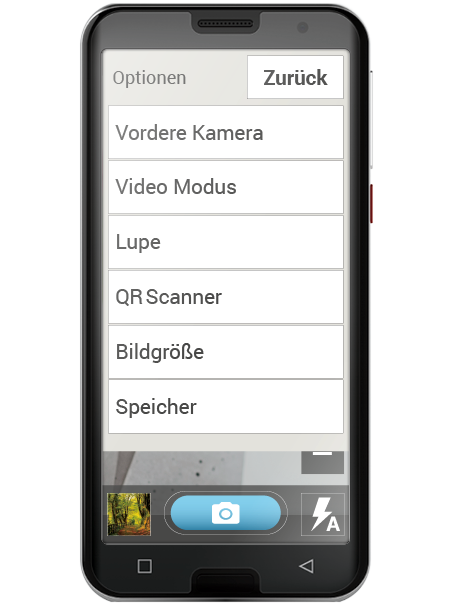
(4) Options: Switch to "Front camera" to take selfies or to "Video mode" to record videos. You can also change the size that photos are taken in.
(5) Photo album: A small version of the last photo or video you took is displayed here. Tap on it to go straight to the photo album.
How do I take a selfie?
If you want to take a selfie, open "Options" and switch from the backfacing
camera (on the back of the phone) to the "Front camera" (on the front of the phone). You will then be able to see yourself on the screen, as you would if you were looking into a mirror, and taking a good selfie will be much easier!
How do I film a video?
Switch to "Video mode" in "Options". You can use the "Back camera" or take a selfie with the "Front camera" in video mode as well.
To start recording, tap on the red button with the film camera icon. A stopwatch in the top left-hand corner will tell you how long you've been recording. To stop, press the red button again.
Where do I find the photo or video that I've just taken?
All the photos you take are automatically stored in the photo album in chronological order.
Do you want to know where a photo is stored? Tap and hold a thumbnail in the photo album for a few seconds and then select "List". The folder in which the photo is stored on your phone will appear
Where will the photo be saved?
You can insert an external memory card into your emporia smartphone and, by doing so, significantly increase the phone's internal storage space.
1. To do this, insert your SD card into the slot provided for it.
2. Next, select the way in which you want the extra memory to be used:
- Use your SD card to increase the phone's internal storage – the extra storage space will be added to the phone's internal memory.
- Use your SD card as a portable storage medium – the extra memory will be displayed as a separate storage medium and can be taken out of the phone again. If you choose this option, you can choose the storage location for photos you take in "Camera - Options - Storage".
How do I use the Magnifier?
- To use this, open the Magnifier app or select the "Magnifier option" in the Camera app.
- Now focus the phone on the object you want to magnify while maintaining fair distance between the phone and object. If the image doesn't automatically come into sharp focus, tap on the screen.
- Tap on the + and - symbols repeatedly until the object has reached your desired size.
- You can also use the torch symbol to illuminate the object if necessary.