PC connection for data transfer
You can connect your emporia device to your PC and then easily transfer data. To do this, use the included USB cable and plug it into the phone and the USB port on your PC.
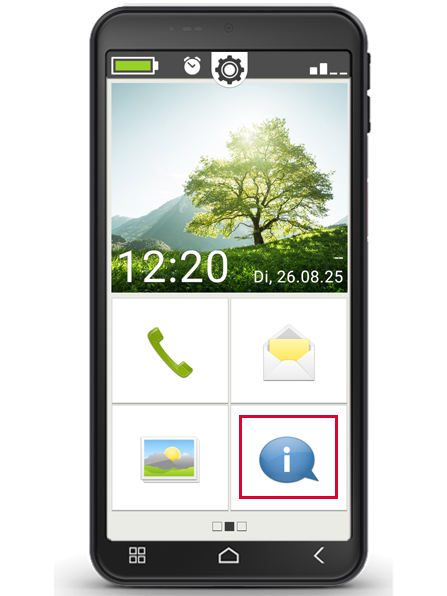
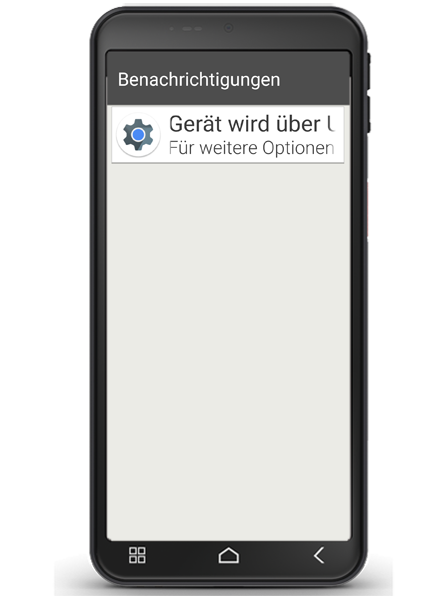
- The phone recognizes the connection and a message appears in the Info centre: Device is being charged via USB.
- Tap this notification.
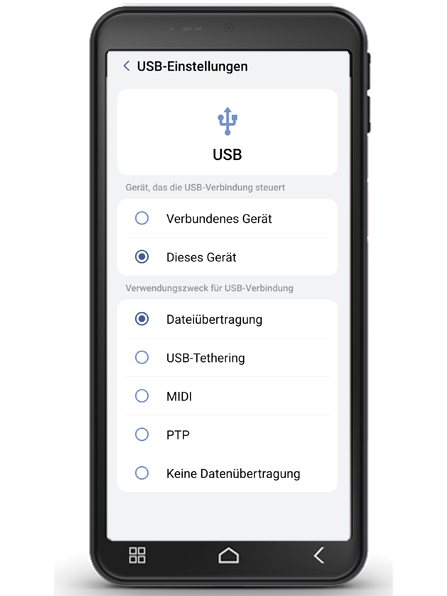
- A pop-up window appears with a selection list of how you want to use the USB connection.
- Select File Transfer.
- The smartphone will now appear on your PC as an external storage device and you can copy data.
What to do:
Step 1 : Connect your smartphone to your PC with a cable
Step 2 : Allow access to data on the smartphone
Step 3 : Select destination folder on PC
Step 4 : Transfer data